TABLE OF CONTENTS
- How to Join a Zoom Meeting and Share Your Entire Screen
How to Join a Zoom Meeting and Share Your Entire Screen
This article explains how to correctly join a Zoom meeting and share your entire screen. These steps must be followed for ICDL/Certiport online exams and other supervised assessments.
Before You Begin
- Use a laptop or desktop computer (mobile devices are not permitted).
- Ensure you have a stable internet connection.
- Install the Zoom desktop application.
- Please be sure to have your meeting ID and password ready.
Information
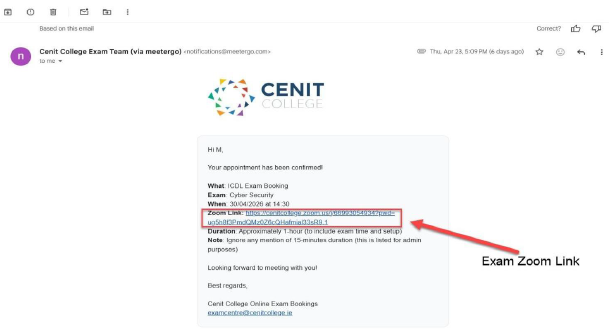
After booking your online exam session, you will receive an email containing the Zoom meeting link.
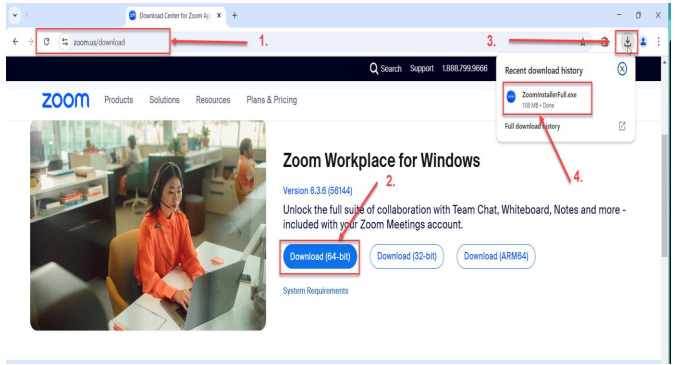
Step 1: Download and Install Zoom
- Go to the Zoom Download Centre
- Download the Zoom desktop application
- Follow the installation instructions
Step 2: Launch Zoom
Open the Zoom application on your computer.
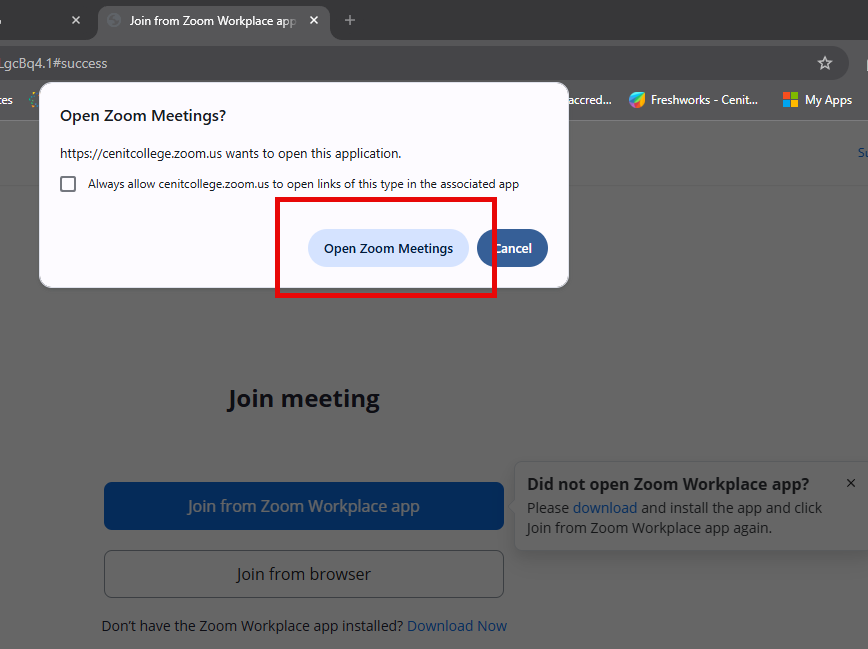
Step 3: Click the Meeting Link when ready to join the Exam Session
- Once you click the link (no password required), you will be presented with the option to open a Zoom meeting.
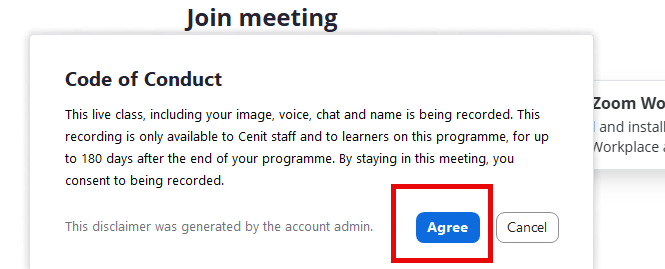
- Accept the code of conduct
Step 4: Wait for the Host
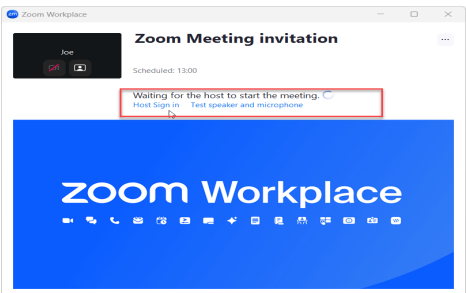
If the host has not yet started the meeting, you will be asked to wait. Remain on this screen until you are admitted by the exam agent.
Step 5: Share Your Entire Screen
Locate the Share Screen Button
Click the green Share Screen button at the bottom of the Zoom window.

Select Your Entire Screen
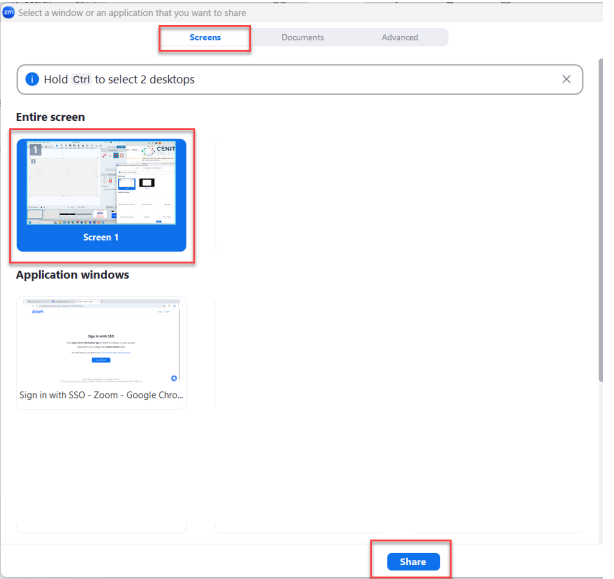
Choose Screen or Desktop. This must be your entire screen, not a single application.
Start Sharing
Click Share to begin screen sharing.
Step 6: Stop Screen Sharing
Only stop sharing when instructed by the exam agent. Click Stop Share at the top of your screen.

Important Exam Rules
- Do not stop screen sharing unless instructed.
- Do not close Zoom during the exam.
- Ensure no personal or confidential applications are open.
- Follow all instructions given by the exam agent.
Need Help?
If you experience technical issues or have questions before your exam, contact Support through the support portal.
Version Control
- Current version: v1.1
- Last updated: 06 May 2026
- Owner: Cenit College
This article reflects current processes. In line with Cenit College policy, processes may be amended where required to meet operational, regulatory, or awarding body requirements.
Was this article helpful?
That’s Great!
Thank you for your feedback
Sorry! We couldn't be helpful
Thank you for your feedback
Feedback sent
We appreciate your effort and will try to fix the article