After successfully completing the ICDL certification test, your digital certificate and module badge are automatically generated and made available in your Skillbox account.
Follow the steps below to access and download them.
Accessing Your ICDL Certificate
- Log in to your Skillbox account.
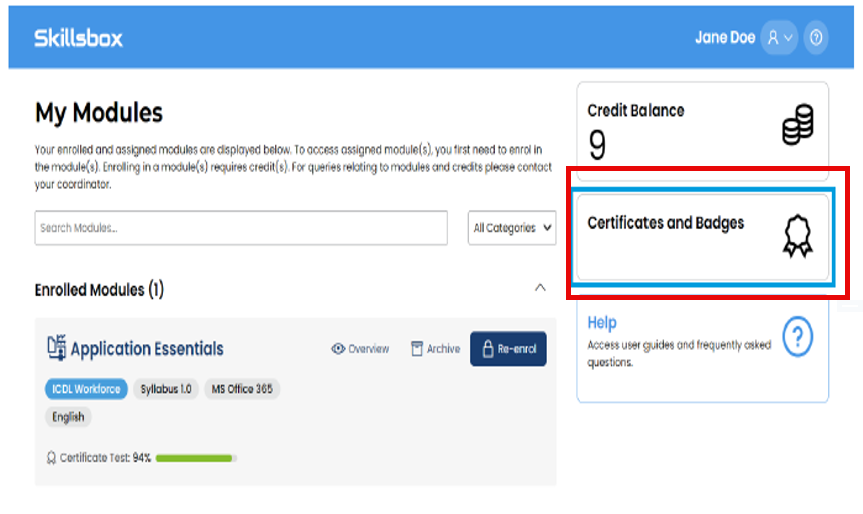
- From your Candidate Dashboard, locate the menu in the top‑right corner.
- Click on Certificates and Badges.
Downloading Your Certificate
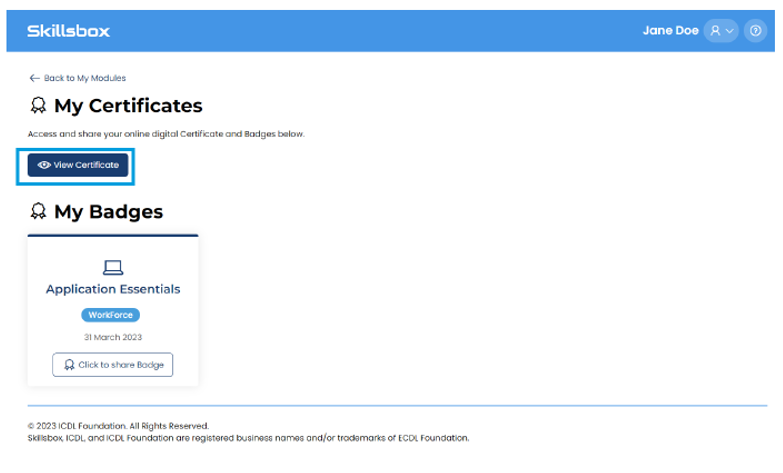
- In the Certificates and Badges section, select My Certificates.
- Your ICDL certificate will appear under this category once your exam result has been confirmed.
- Click View Certificate.
- You will then have the option to download or save your digital certificate.
Accessing Your Digital Badge
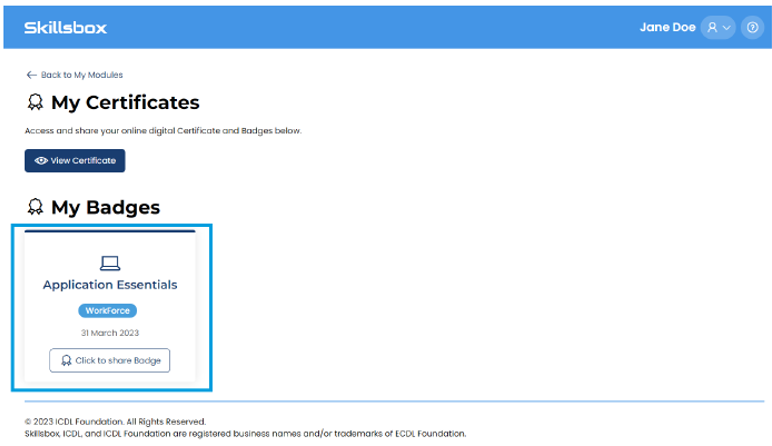
- In the same Certificates and Badges area, select My Badges.
- Your ICDL module badge (e.g. Application Essentials) will be displayed.
- Select the badge to view sharing and download options.
Note: Badges are useful for sharing on LinkedIn, CVs, and digital portfolios.
Important Information
- Certificates and badges are generated automatically after a successful pass.
- If you have completed multiple modules, each passed module will appear separately.
- If your certificate does not appear immediately, please allow some time for the system to update.
Need Help?
If you cannot see your certificate or badge after completing your exam, please contact support with:
- Your full name
- Course/module completed
- Date of exam
We will be happy to assist.
Was this article helpful?
That’s Great!
Thank you for your feedback
Sorry! We couldn't be helpful
Thank you for your feedback
Feedback sent
We appreciate your effort and will try to fix the article