This article explains how to access and download your certificates and badges across different certification providers.
It also provides step by step instructions for each platform in a simple, easy to follow format using collapsible sections.
If you have already completed your exam and cannot find your results, please refer to the final section or contact support.
TABLE OF CONTENTS
- ICDL Courses
- Certiport Courses
- Microsoft Certifications
- CompTIA
- Digital Marketing Institute (DMI)
- PCAP
- AWS
- Can't Find Your Results?
ICDL Courses
Courses
- All ICDL Courses
Steps
- After successfully completing the ICDL certification test, your digital certificate and module badge are automatically generated and made available in your Skillbox account.
- Follow the steps below to access and download them
- Log in to your Skillbox account.
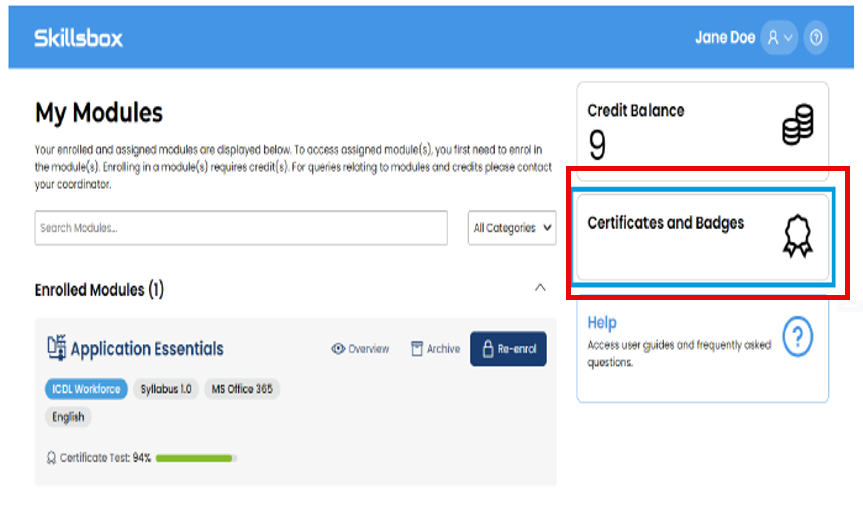
- From your Candidate Dashboard, locate the menu in the top‑right corner.
- Click on Certificates and Badges.
Downloading Your Certificate
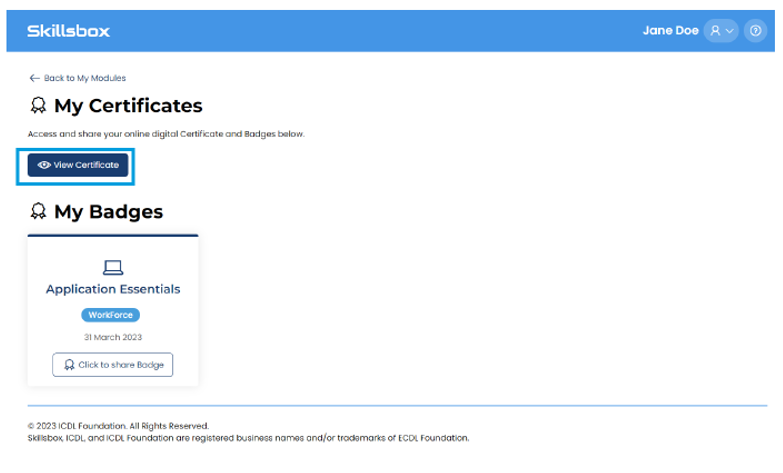
- In the Certificates and Badges section, select My Certificates.
- Your ICDL certificate will appear under this category once your exam result has been confirmed.
- Click View Certificate.
- You will then have the option to download or save your digital certificate.
Accessing Your Digital Badge
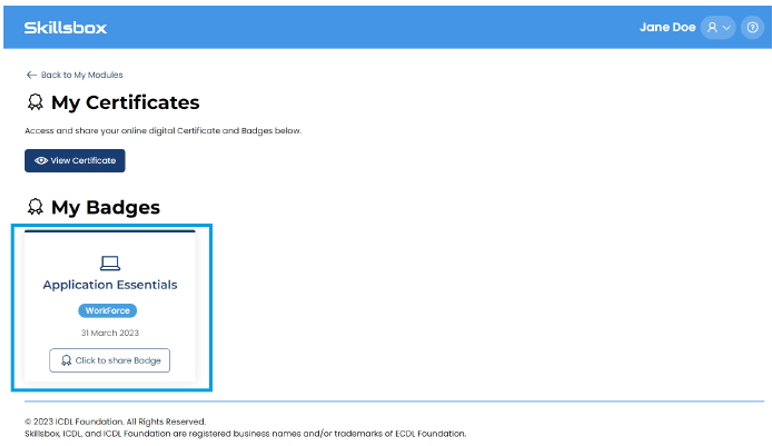
- In the same Certificates and Badges area, select My Badges.
- Your ICDL module badge (e.g. Application Essentials) will be displayed.
- Select the badge to view sharing and download options.
Note: Badges are useful for sharing on LinkedIn, CVs, and digital portfolios.
Important Information
- Certificates and badges are generated automatically after a successful pass.
- If you have completed multiple modules, each passed module will appear separately.
- If your certificate does not appear immediately, please allow some time for the system to update.
Certiport Courses
Courses
- Microsoft Office Specialist (MOS)
- Information Technology Specialist (ITS)
- Adobe
Steps
- Log in to your Certiport account:
- ? Certiport Candidate Portal
Once logged in:
- Select My Transcript
- View your exam results
- Download or print your certificate (if you passed)
Results are usually available shortly after your exam
Microsoft Certifications
Courses
- Azure
Steps
- Log in to your Microsoft Learn profile
- ? https://learn.microsoft.com/users/me/credentials
Here you can:
- View exam results
- Access certifications
- Download transcripts
- View badges and renewal status
For exams delivered through Certiport, results should also appear in your Microsoft Learn profile within 24 hours.
CompTIA
Courses
- All CompTIA Courses
Steps
Step 1
- Log on to the CompTIA Portal
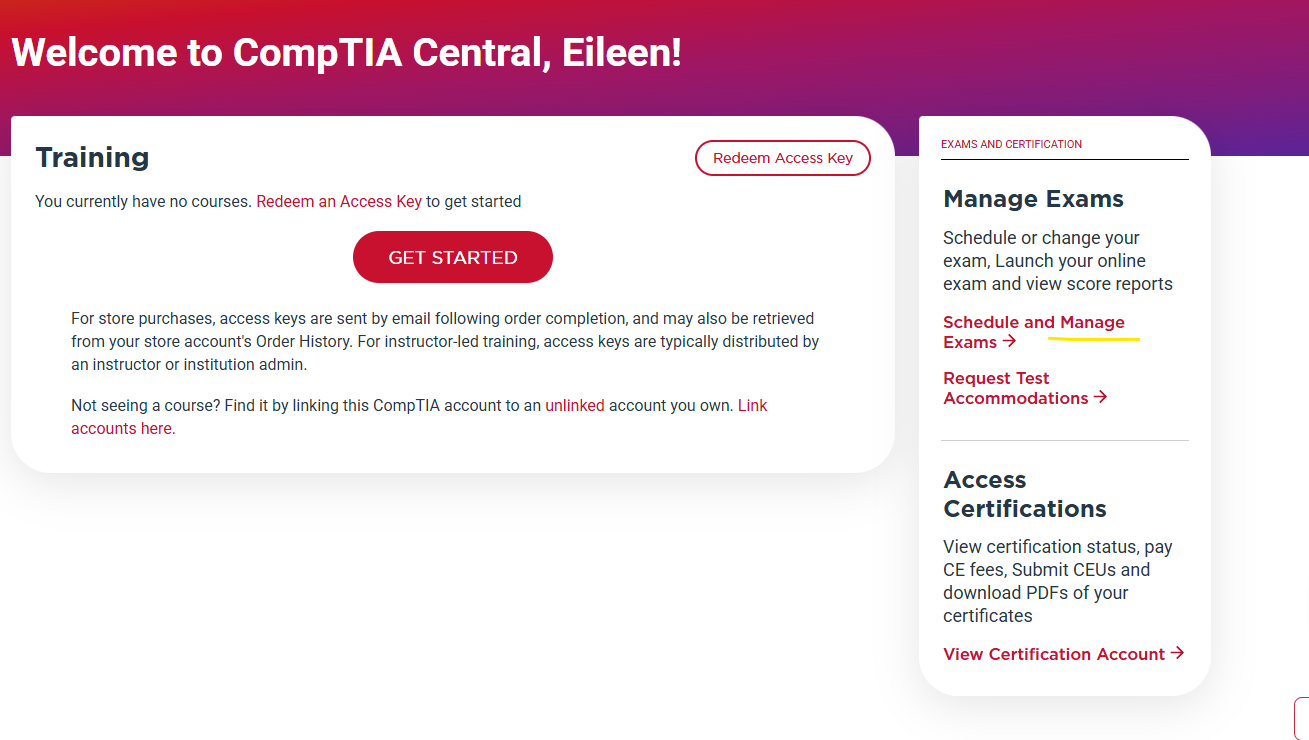
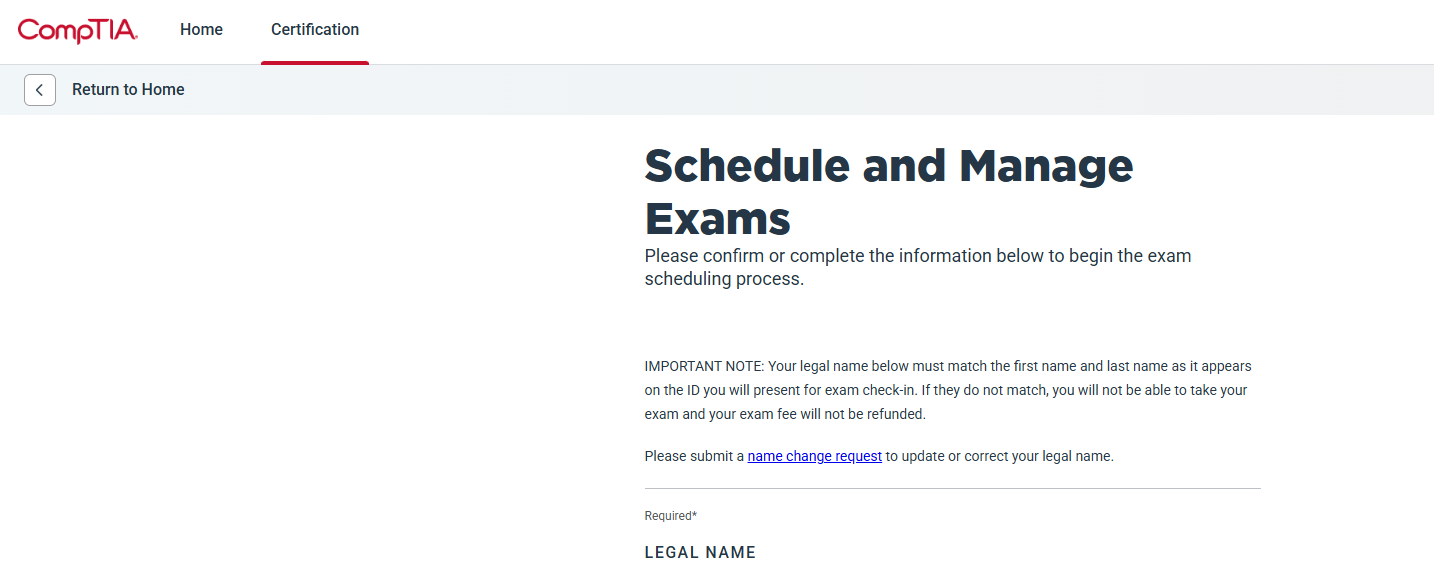
Step 2
- Navigate to the Certifcation tab
Step 3
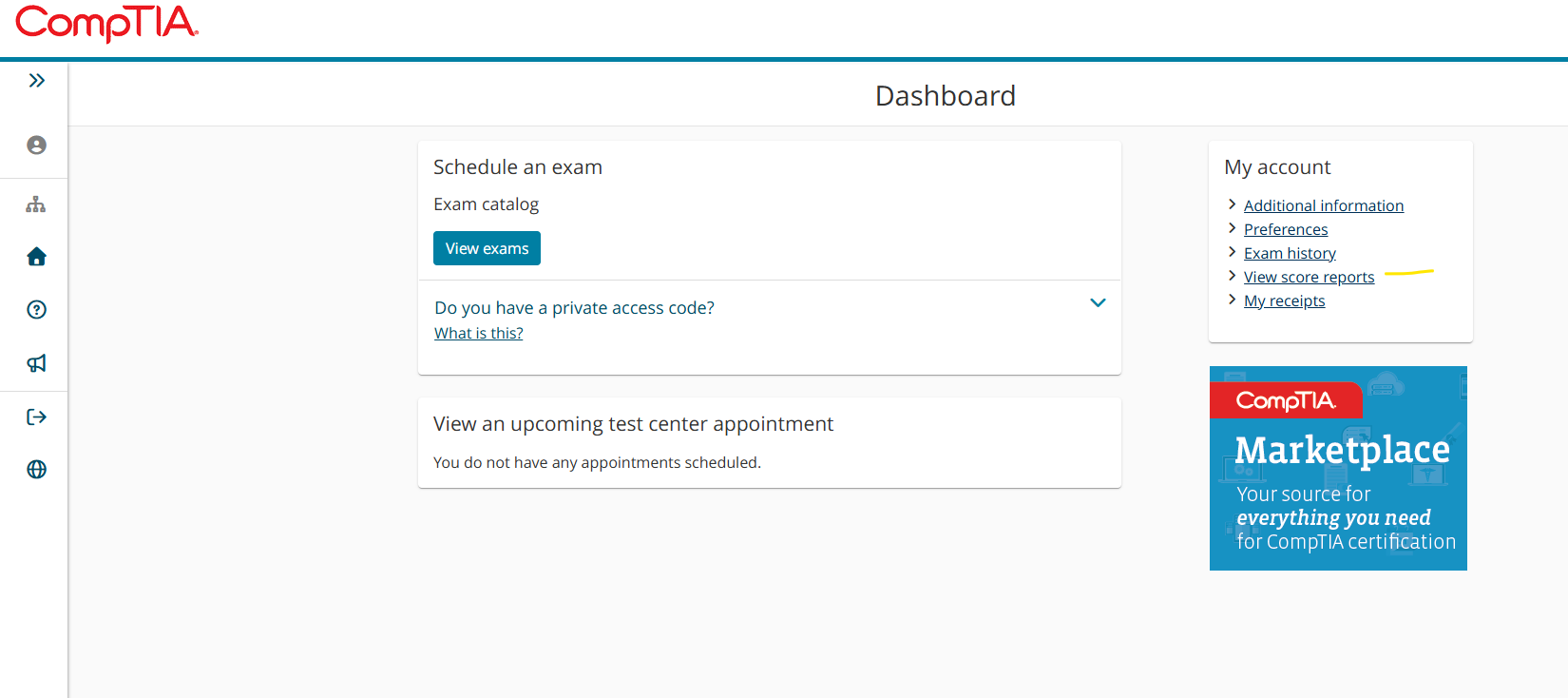
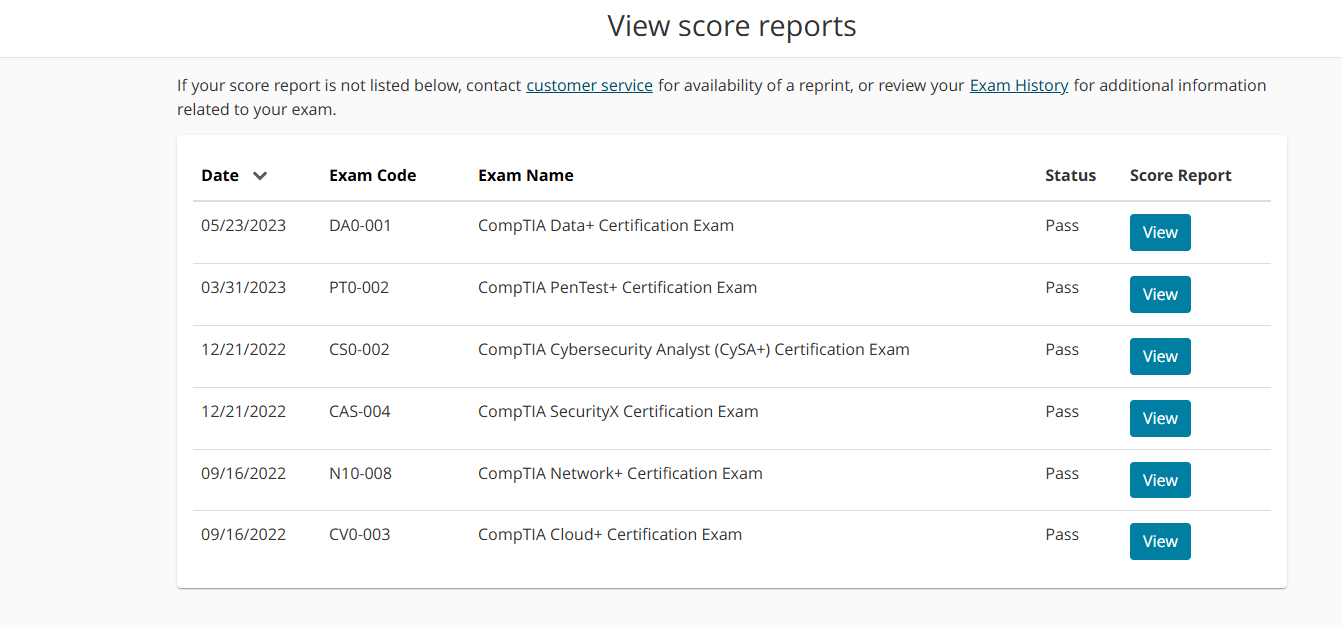
- Click View Exam to view you exams
Step 4
Digital Marketing Institute (DMI)
Courses
- All DMI Courses
Steps
Your provisional result will be available within your MyDMI profile shortly after completing the exam.
Please note that this score remains subject to DMI review and validation.
To locate your score:
- Log on to the My DMI portal
- Select Courses.
- Open your active course.
- Locate your provisional results area
PCAP
Courses
- Python Associate Certification)
Steps
- PCAP certificates are typically issued through the Python Institute/OpenEDG certification programme.
Candidates can:
- Access their certification records through their Python Institute/OpenEDG account.
- Claim their digital badge through Credly if awarded. ? https://www.credly.com/
AWS
Courses
- AWS Cloud Practitioner
- AWS Solutions Architect
- AWS Developer
- AWS SysOps Administrator
- All other AWS Certification exams
Steps
Accessing Your AWS Certification Account
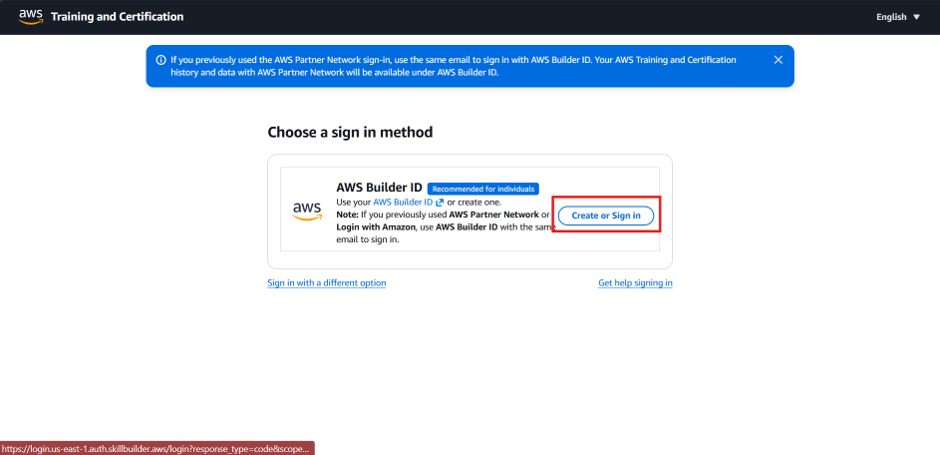
- Go to the AWS Certification Exams page: https://www.pearsonvue.com/us/en/aws.html
- Click Continue to log in.
- Sign in using your AWS Builder Account credentials.
- You will be redirected to the CertMetrics certification portal
Downloading Your Score Report
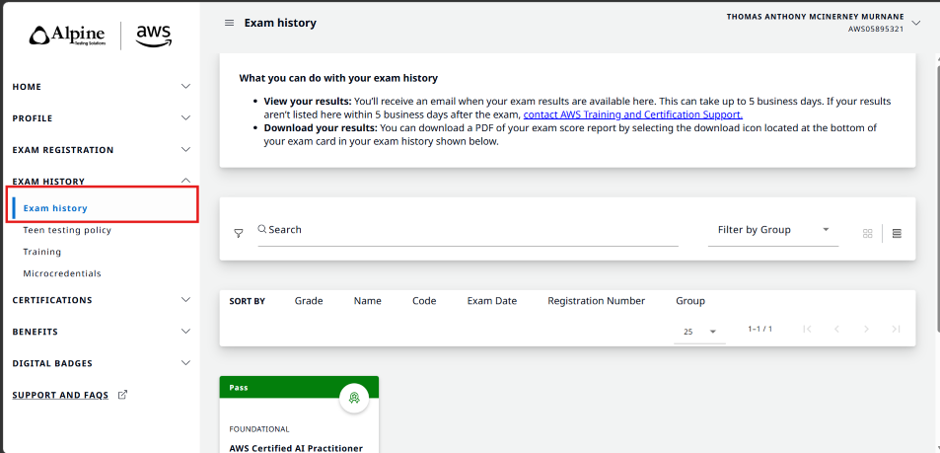
- Once logged in to CertMetrics, select Exam History.
- Click Exam History from the available options.
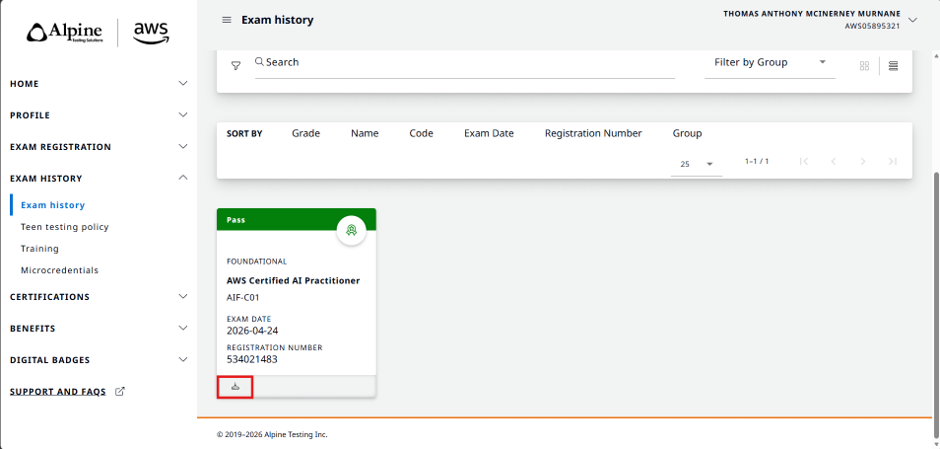
- Locate the exam you want to review.
- Click the Download icon next to the exam.
Downloading Your AWS Certificate
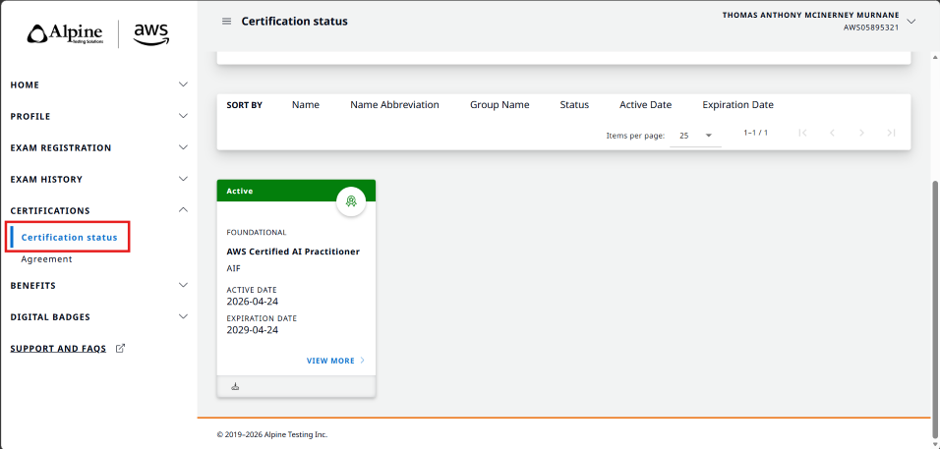
- From the CertMetrics portal, select Certifications.
- Click Certification Status.
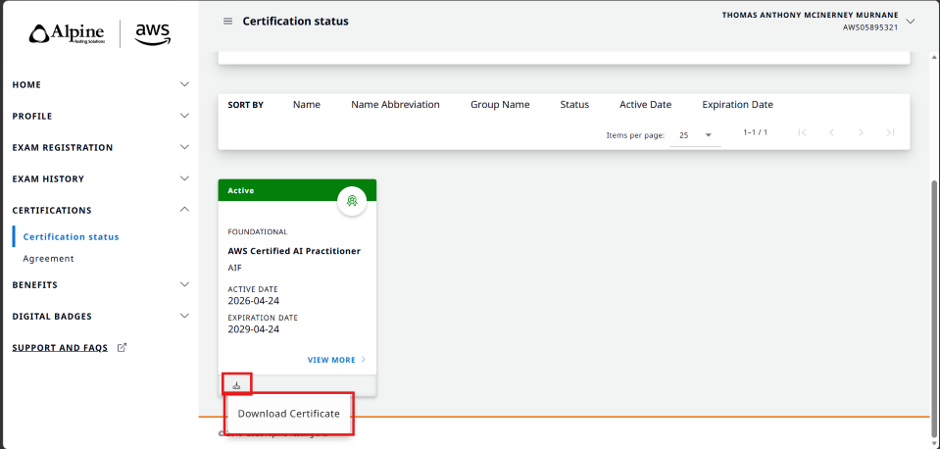
- Locate the certification you wish to download.
- Click the Download icon.
- Select Download Certificate.
Important Information
Can't Find Your Results?
If you are unable to locate your certificate or results:
- Check that you are signing in with the same email address used when registering for your exam.
- Check your spam/junk folder for certification emails.
- Contact the learner support team and provide:
- Full name
- Course name
- Exam date
- Certification provider
Support can then advise on the appropriate certification platform.
Was this article helpful?
That’s Great!
Thank you for your feedback
Sorry! We couldn't be helpful
Thank you for your feedback
Feedback sent
We appreciate your effort and will try to fix the article