What this page is for
This article explains how to register with Certiport.
It walks through each step of the registration process.
If you have not yet registered with Certiport, please complete all steps below before your exam date.
TABLE OF CONTENTS
Overview
Before you sit a Certiport exam, you must register with Certiport.
It is mandatory to complete this registration before your first exam date. The process takes approximately 5–10 minutes.
Register
- Go to https://certiport.pearsonvue.com/
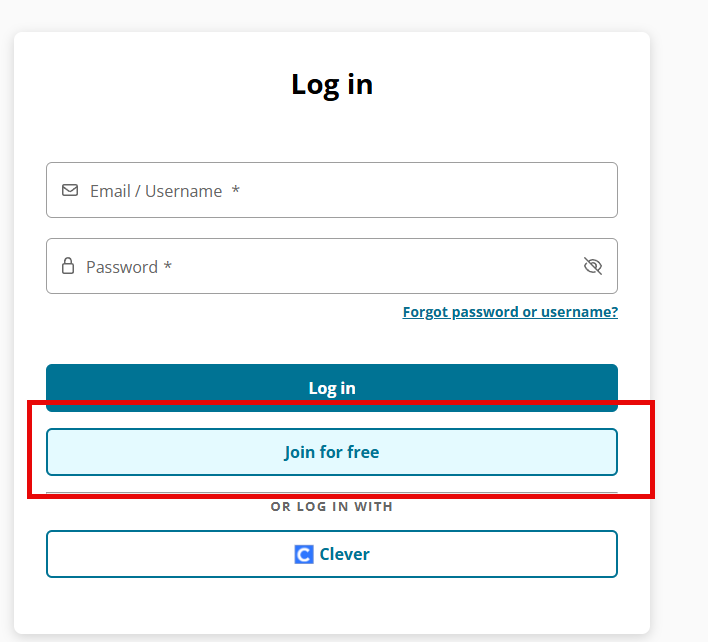
- In the top-right corner of the screen, click the Register button.

- Select Join for Free
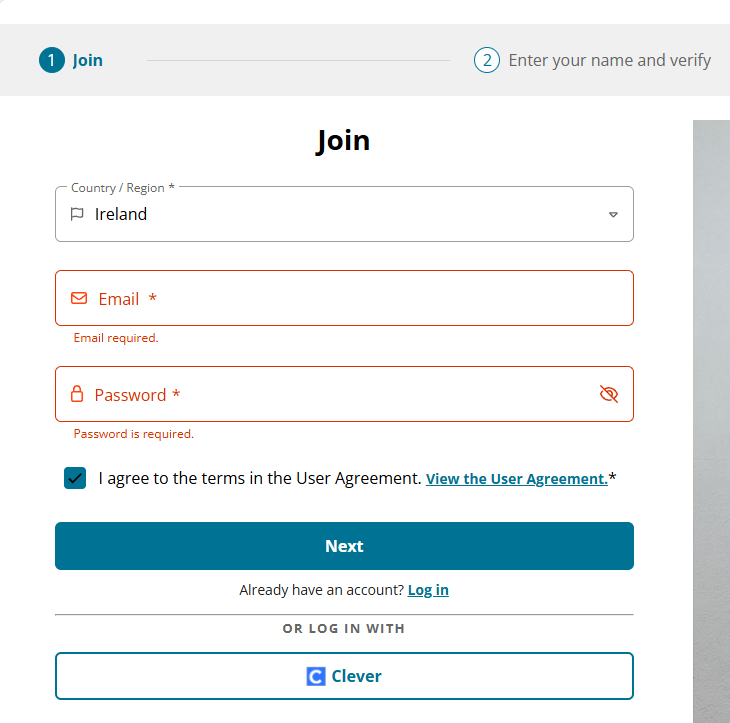
- Enter Region
- Enter a valid email address that you use on a regular basis (as you need to access this again)
- Enter a password
- Your password must include:
- at least twelve characters
- at least one special character
- at least one uppercase letter
- at least one number
- Your password must include:
- Agree to the terms of the user agreement
- Click Next
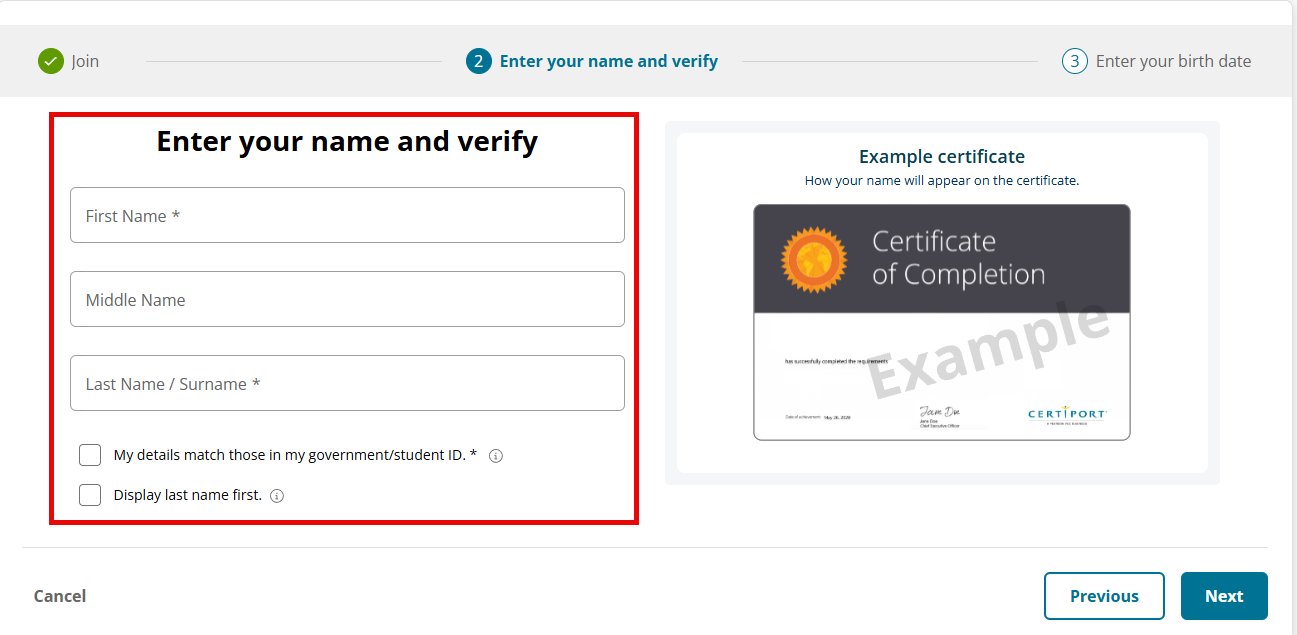
- Enter:
- First Name
- Last Name
- Tick to agree that the name you entered matches your identification (you need to produce a government-issued in-date identification to sit the examination)
- Decide if you want your Last name to appear first on the certificate, tick the relevant box if you do.
- Click Next
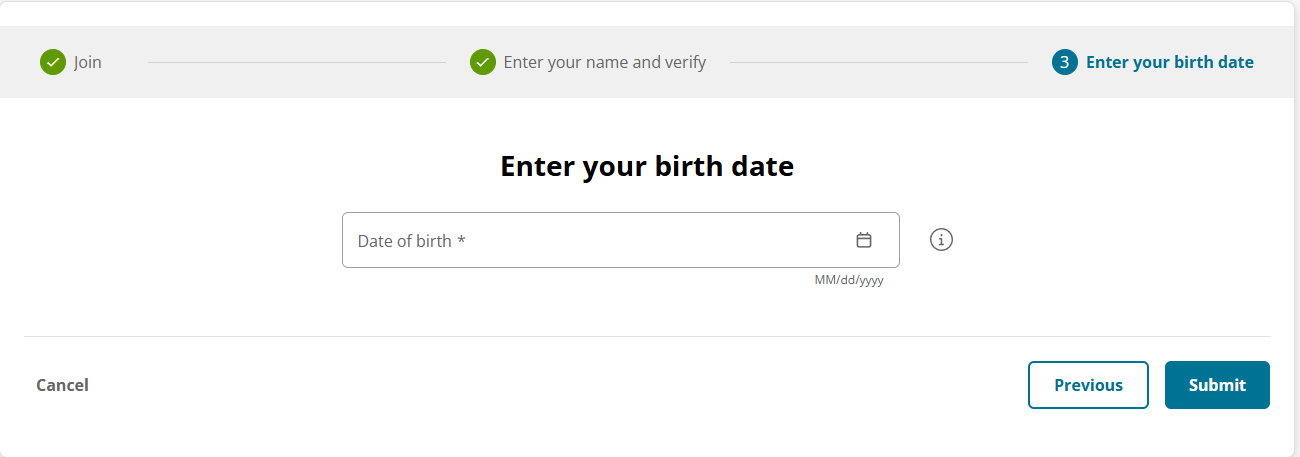
- On the next screen, enter your date of birth
- Click Submit
Log Into Account
- Log in to the account using your username (email address) and password on the next screen
Enter Mailing Address
- You will then be asked for your mailing address
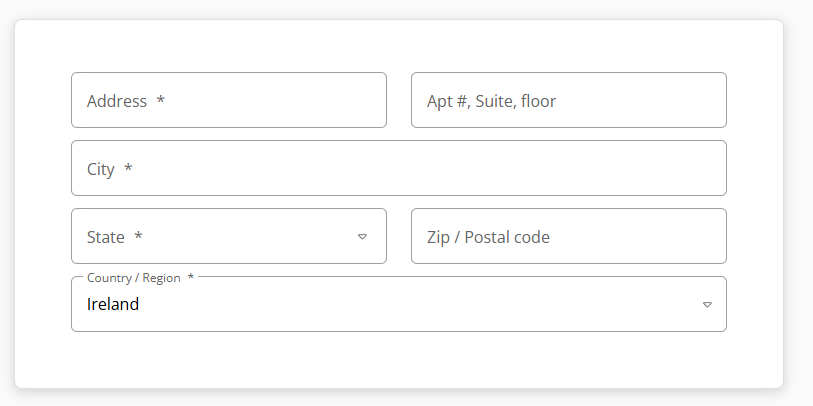
- Your account is now set up, and you will see this screen

Choose the program
- On the program screen, select and register for your program
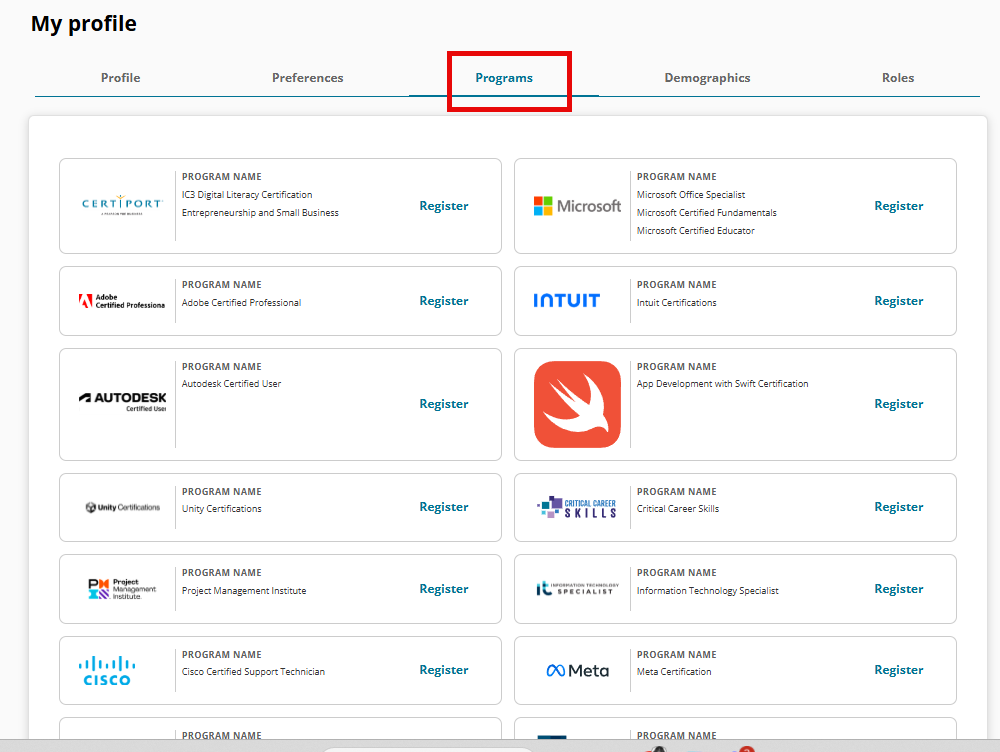
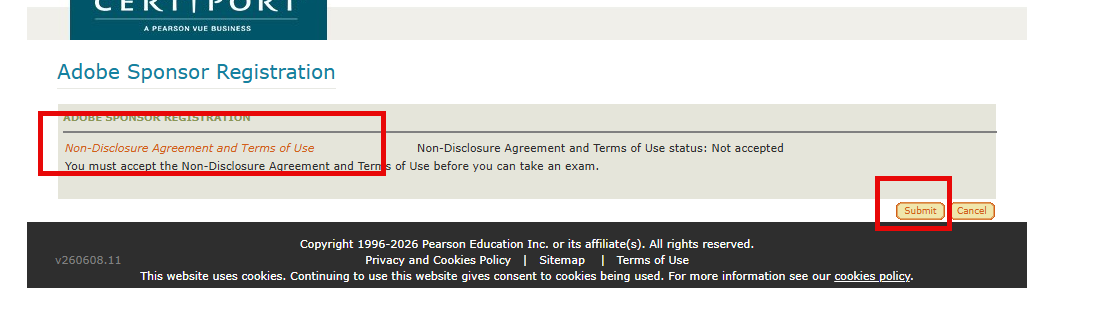
- Accept the relevant Sponsor Registration Agreement
- Review and click Submit
Need Help?
If you have technical issues or questions about your Certiport registration, you can contact Support through the support portal.
Version Control
- Current version: v1.0
- Last updated: June 2016
- Owner: Cenit College
This article reflects current processes. In line with Cenit College policy, processes may be amended where required to meet operational, regulatory, or awarding body requirements.
Was this article helpful?
That’s Great!
Thank you for your feedback
Sorry! We couldn't be helpful
Thank you for your feedback
Feedback sent
We appreciate your effort and will try to fix the article