What this page is for
This article explains how to access and activate your Adobe Creative Cloud licence provided through eCollege.
It also explains how to install Adobe Creative Cloud and Adobe applications on your device.
If you already have access but are experiencing technical issues, please contact the support team.
On this page
- Get started
- Joining Adobe for the first time
- Using an existing Adobe account
- Important notes about Adobe licences
- Adobe Creative Cloud explained
- Creative Cloud online vs desktop app
- Install Adobe Creative Cloud
- Install the Adobe Application Relevant to your Course
- macOS and Windows installation notes
- Need Help?
Get started
Thank you for completing the form to receive your Adobe Creative Cloud licence.
You should receive two emails from Adobe. These emails include a Get Started button.
If you do not see the emails, check your spam or junk folder.
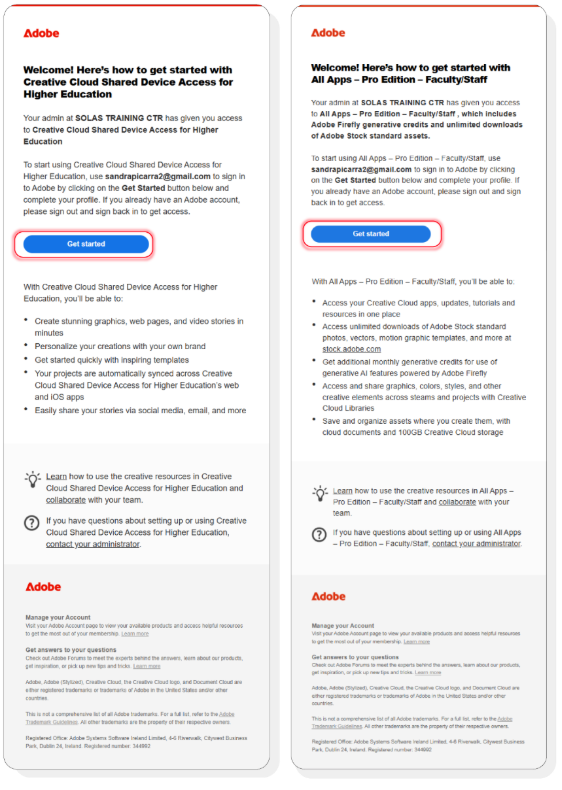
To start using Adobe applications, click the Get Started button and sign in using your email address.
If you already have an Adobe account, sign out first and then sign back in to make sure your licence activates correctly.
Joining Adobe for the first time
If you have never had an Adobe account before, an account will be created for you using the same email address you registered with eCollege.
You do not need to manually create an account.
You will be guided through a short setup process.
Account setup steps
- Enter the requested information and select Complete account.
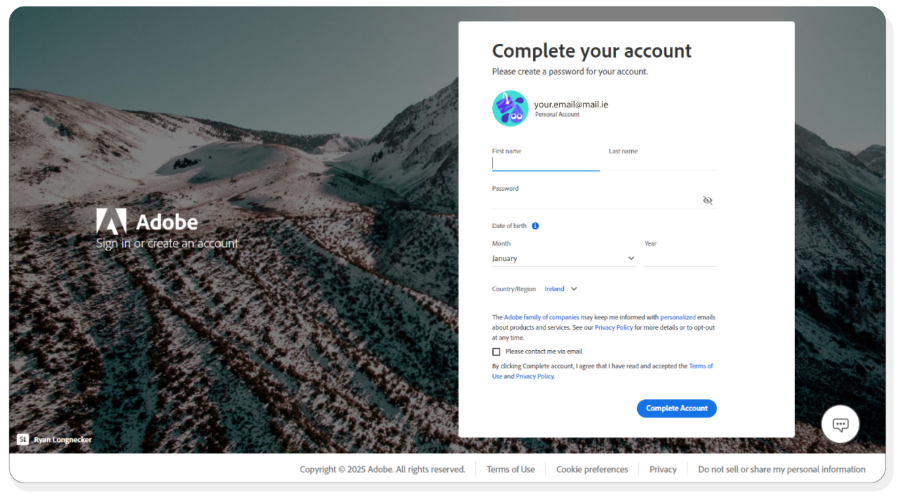
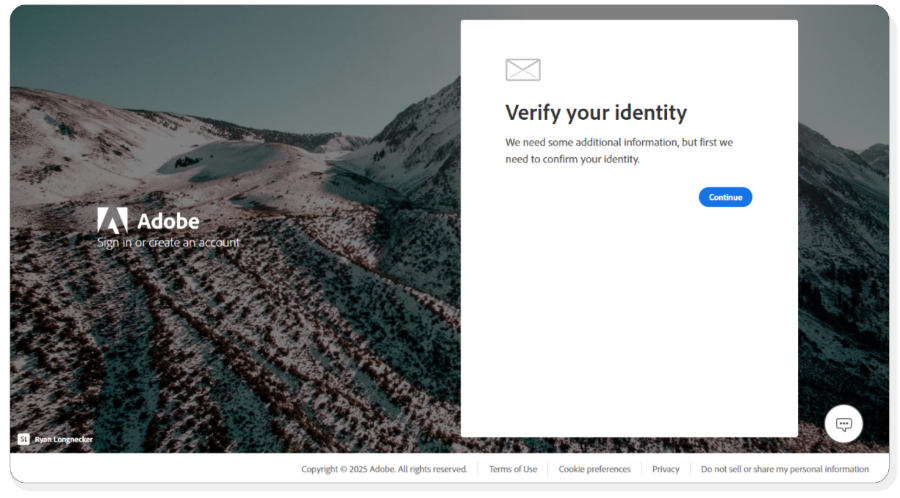
- You may be asked to verify your identity.
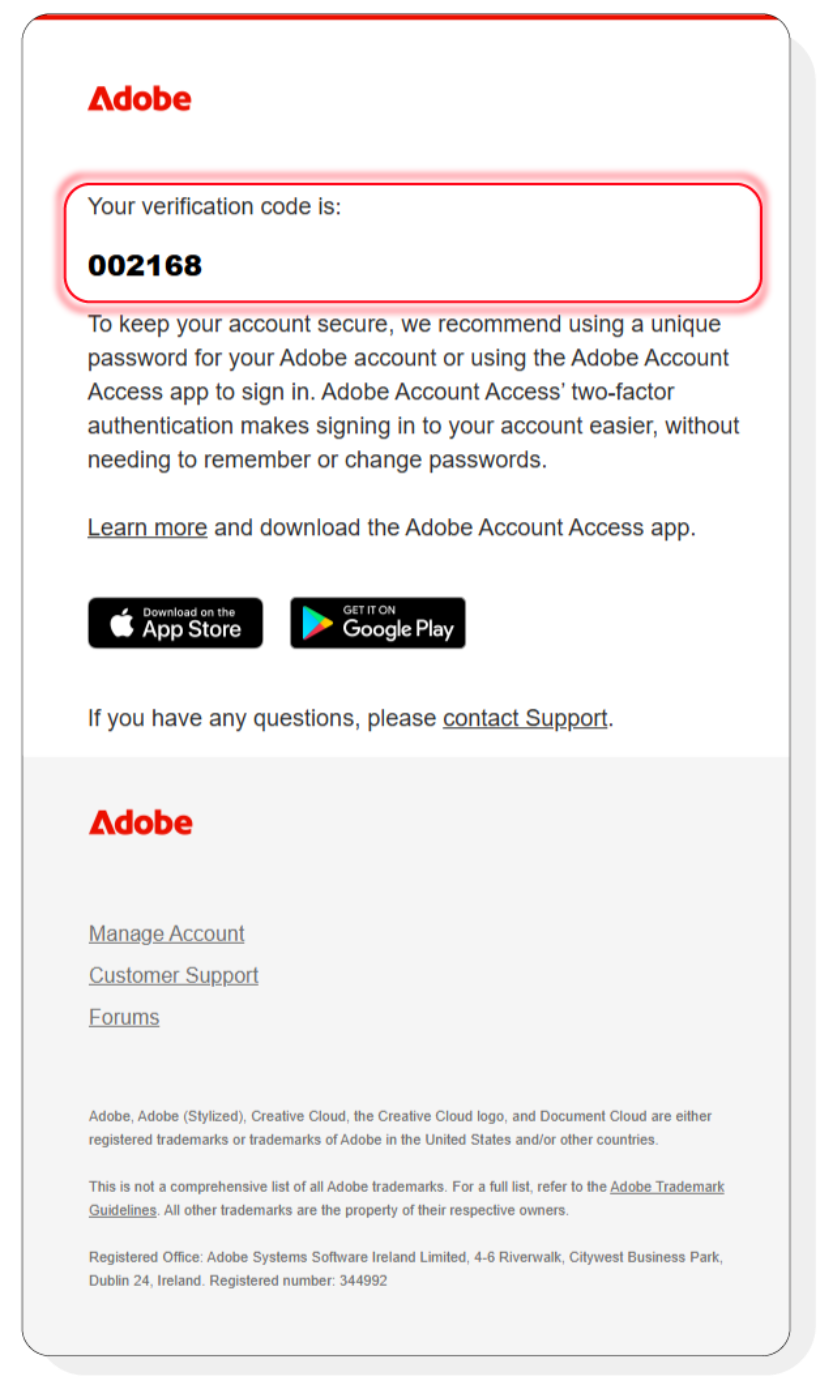
- A verification code will be sent to your email address.
- Check your inbox or your spam folder.
- Enter the verification code to complete setup.
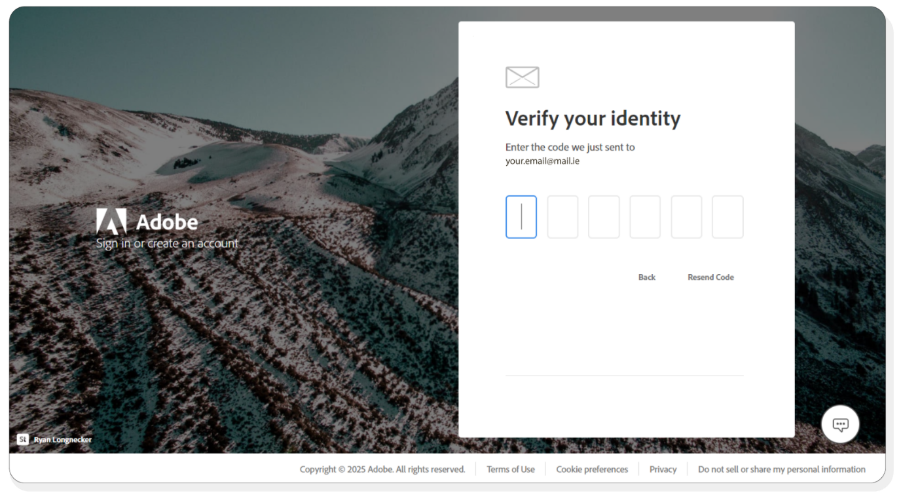
- Once finished, your Adobe account will be ready to use.
Next step
- You must install the Adobe Creative Cloud desktop application on your device.
Using an existing Adobe account
If you had an Adobe account previously, but it is no longer active, you can still use it.
Steps to activate your licence
- Sign out fully from your existing Adobe account.
- Open the Adobe activation email and select Get Started.
- Sign in with your Adobe email address and password.
- If prompted, choose between your personal account and your Solas Training CTR account.
- Select the Solas Training CTR account.
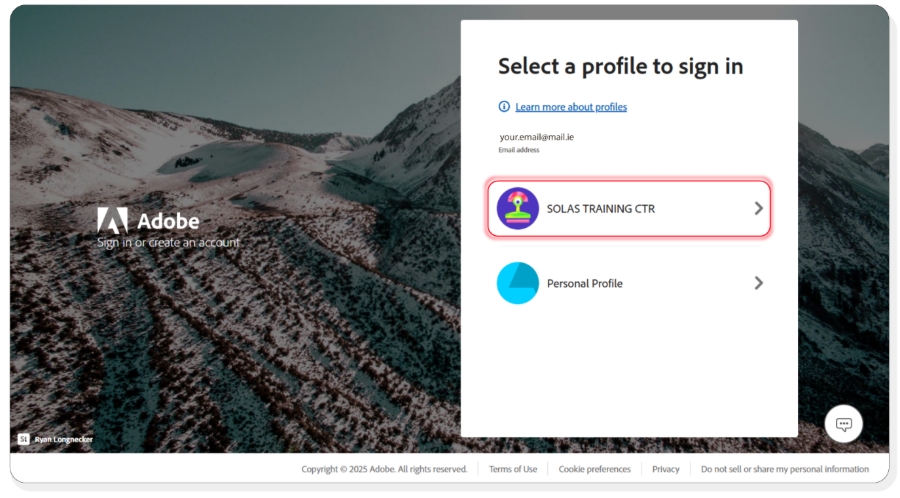
- If you see a welcome screen, select Join Team.
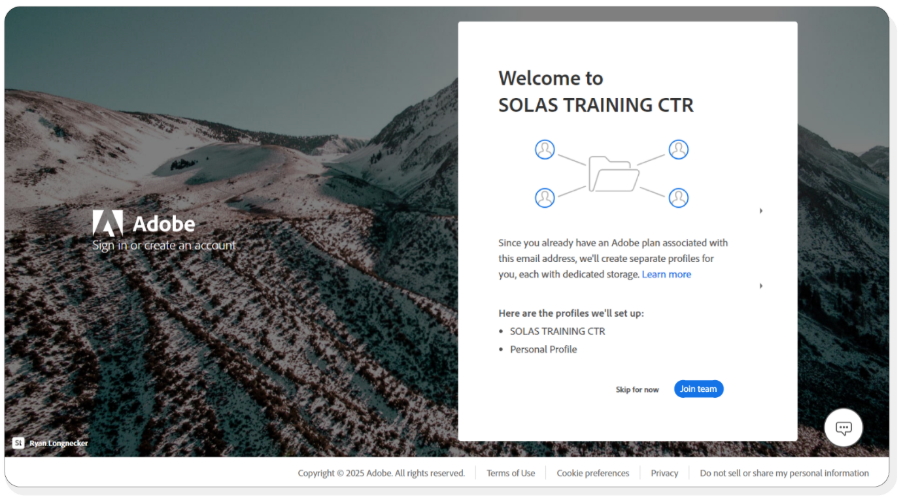
- Your Adobe licence is now activated.
Important notes about Adobe licences
Device usage
You can install Adobe apps on multiple devices.
You can be signed in on two computers at the same time.
You can only actively use Adobe apps on one computer at a time.

Account sharing
Your Adobe account is for your use only.
Sharing accounts is not allowed and may cause access or security issues.
For more details, see Adobe's policies that prohibit account sharing.
Account inactivity
You must sign in and use your account regularly.
Inactive accounts may lose access or stored content.
For more details, refer to Adobe's free account inactivity.
Licence duration
- Your Adobe licence is active for the duration of your course.
- When your course ends, your licence will be deactivated.
- Make sure to save and back up your work before your course finishes.
Adobe Creative Cloud explained
Adobe Creative Cloud is a collection of professional creative applications.
It includes tools for design, illustration, photo editing, video and publishing.
Creative Cloud online vs desktop app
Creative Cloud online
- This is accessed through a web browser.
- It allows you to manage files and account settings.
- It cannot install or run desktop applications.
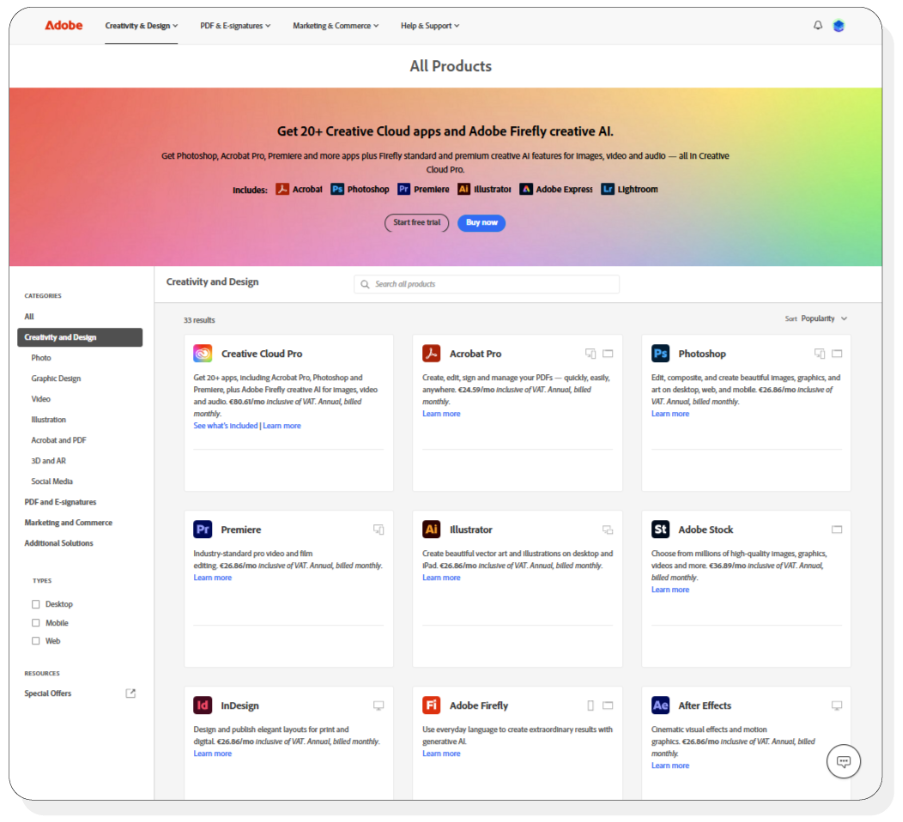
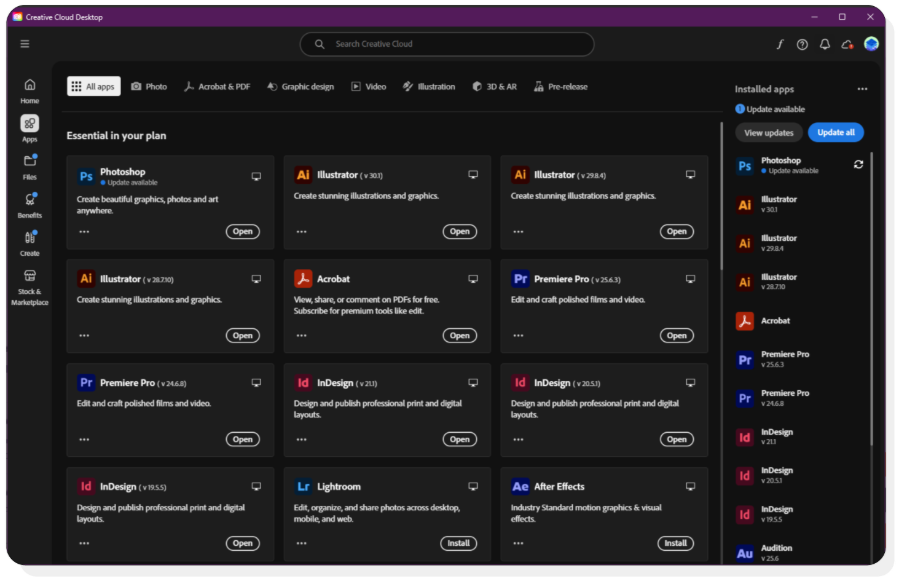
Creative Cloud desktop app
- This is software installed on your computer.
- It is required to install and manage Adobe applications.
- You must use the desktop app for this course.
Install Adobe Creative Cloud
- Go to the Adobe website.
- Sign in using the email address linked to your eCollege account.
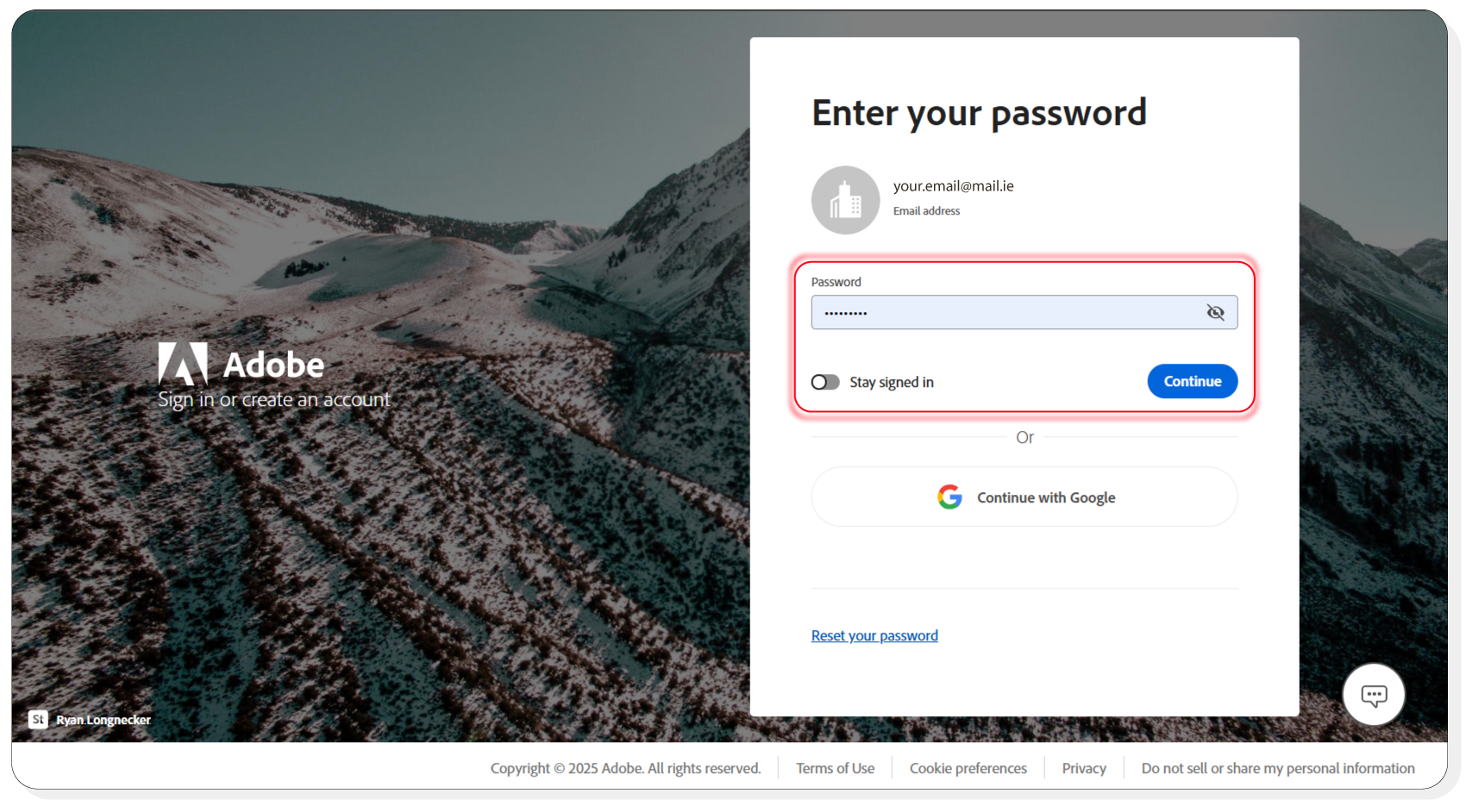
- Open the apps menu.
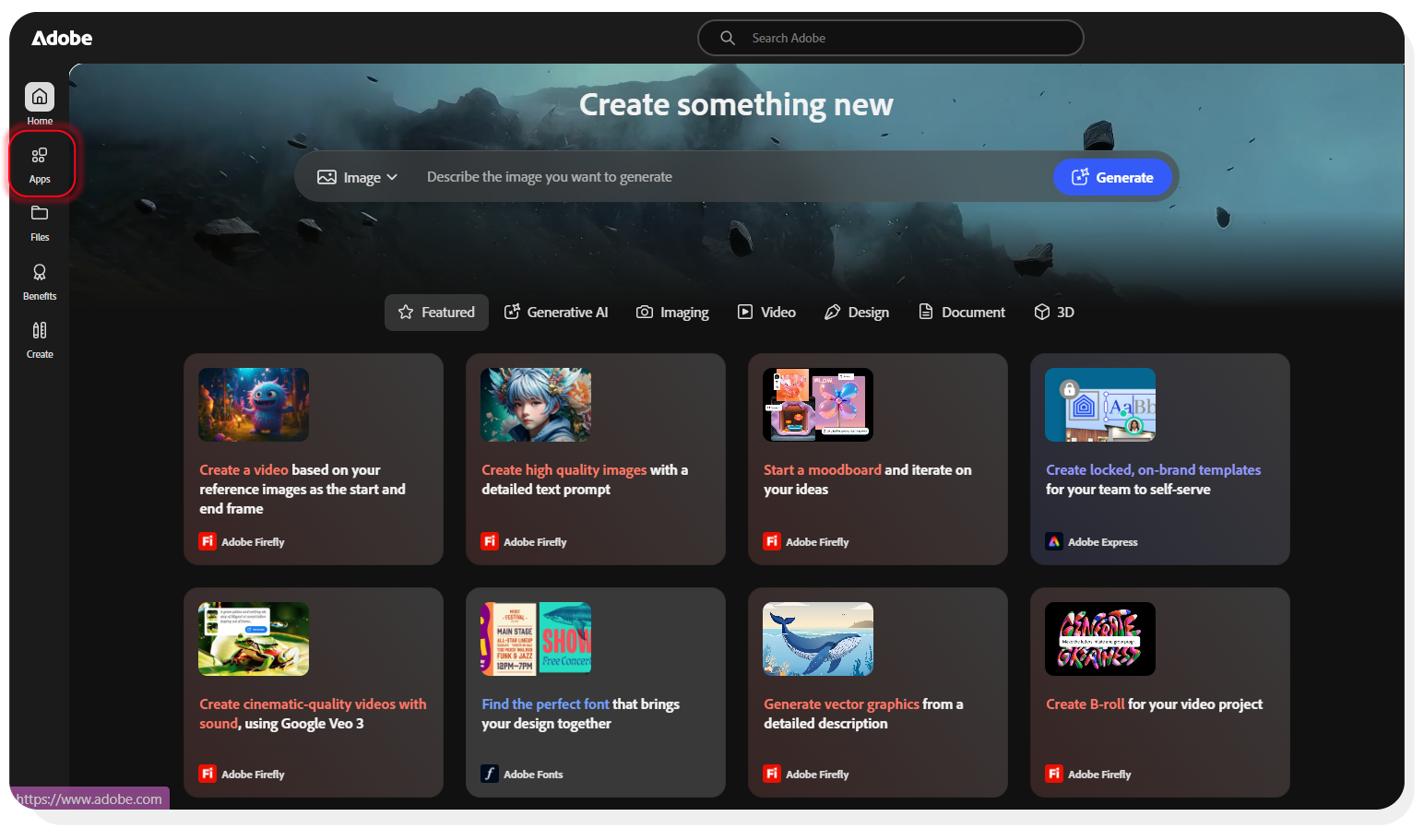
- Select Creative Cloud.
- Select install.
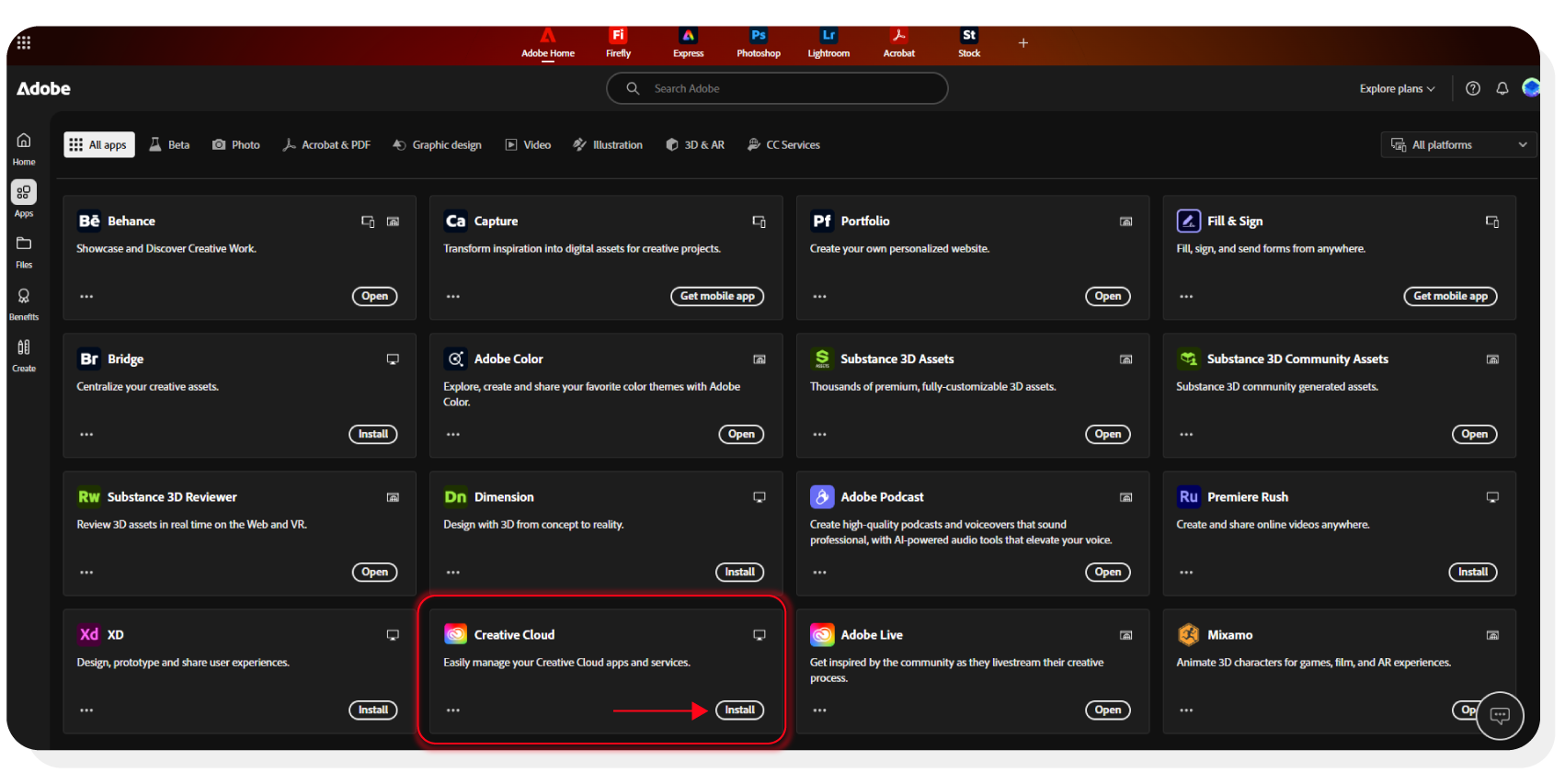
- Follow the on-screen instructions.
- Once installed, you can download the relevant Adobe application.
Install the Adobe Application Relevant to your Course
- Open the Adobe Creative Cloud desktop application.
- Select the Apps tab.
- Find the Adobe application relevant for your course in the list.
- Select install.
- Wait for the installation to complete.
- Open the application from your applications or start menu.
- The Adobe application is now ready to use.
macOS and Windows installation notes
macOS
- You may need to allow permissions during installation.
- Check System Settings, Privacy and Security if prompted.
- Make sure you are using an administrator account.
Windows
- You may see a User Account Control message.
- Select Yes to continue.
- Ensure Windows is up to date.
Important for all users
- Use a stable internet connection.
- Always sign in with your eCollege email address.
- Do not install a trial or enter personal payment details.
Need Help?
If you have technical issues or have questions, you can contact Support through the support portal.
Version Control
Current version: v1.0
Last updated: 21 April 2026
Owner: Cenit College
This article reflects current processes. In line with Cenit College policy, processes may be amended where required to meet operational, regulatory, or awarding body requirements.
Was this article helpful?
That’s Great!
Thank you for your feedback
Sorry! We couldn't be helpful
Thank you for your feedback
Feedback sent
We appreciate your effort and will try to fix the article