What this page is for
This article explains common issues learners may experience when using GMetrix practice tests.
Issues are grouped by course so you can quickly identify whether behaviour is expected or requires action.
If you are unsure whether something is an error or a simulation limitation, review this page before contacting Support.
On this page
- Contacts for Technical Issues
- Common Issues and Resolutions
- Installation issues on Windows
- Login problems
- Access code and activation issues
- Connectivity and network issues
- Performance issues
- Application crashes
- Progress not saving
- macOS limitations
- GMetrixTemplate folder
- GMetrixTemplate folder - Reset or change the folder location
- Issue: Questions are not loading or are taking a Long Time to load
- Issue: The templates folder Cache affects test performance.
- Error: Unable to access sample document directory (macOS )
- Issue: Adobe Loading Issue (MacOS)
- Issue: GMetrixSMS cannot locate the Adobe Application
- Issue: Missing the option to start the exam
- Specific Application Issues (by Course)
- Common Issues and Resolutions
Contacts for Technical Issues
If the issue persists after troubleshooting, please contact support@gmetrix.com and copy cenitsupport@cenitcollege.ie.
It is important to copy us on the email so we can follow up with GMetrix if you do not receive a quick response.
You can also visit the GMetrix Official Support Page.
``
Common Issues and Resolutions
Installation issues on Windows
Some learners experience problems installing GMetrix.
- Run the installer as administrator
- Ensure Windows Updates are complete
- Temporarily disable antivirus software
Login problems
An invalid username or password message may appear.
- Check login details carefully
- Ensure the caps lock is off
- Use the password reset option
Access code and activation issues
Access codes may appear invalid, expired, or already used.
Contact Cenit College Support if this occurs.
Connectivity and network issues
- Check the internet connection
- Disable VPN services
- Restart the device and router
Performance issues
- Close unnecessary applications
- Restart the computer
Application crashes
- Reinstall GMetrix
- Ensure Windows is fully updated
Progress not saving
- Exit tests using on screen controls
- Avoid closing the application suddenly
macOS limitations
- Some tests may only run using the web version
GMetrixTemplate folder
Where can I find the GMetrixTemplate folder, and where should I save projects when prompted?
- By default, GMetrixTemplates and saved projects are located in the user's C:drive/ Your folder/ Documents/ GMetrix Template in the AppData folder.
- If you are using a works device, the fire wall protection and/or administrator settings can prevent this from happening and you will need to talk to your tech team.
- If this default location does not work for your setup, you can change where this location is created by following the steps below:
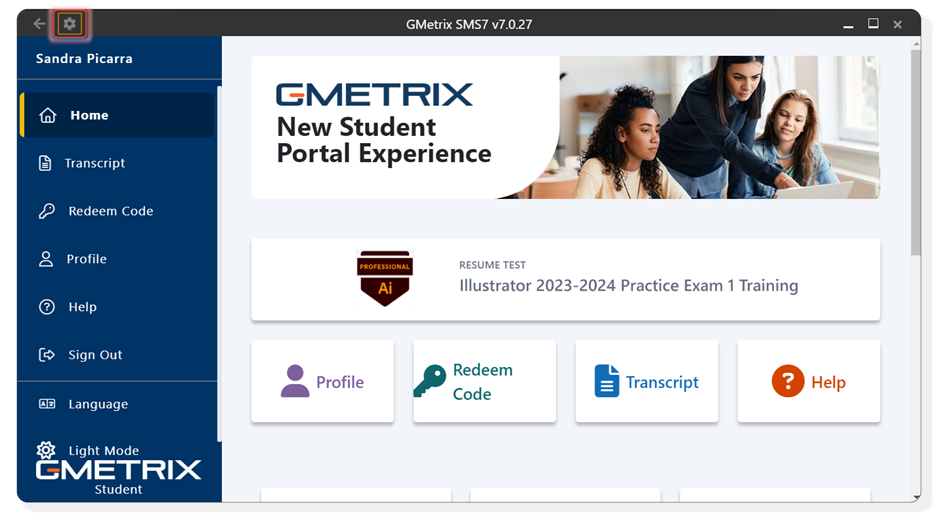
- Open the Options gear icon in the top-left corner
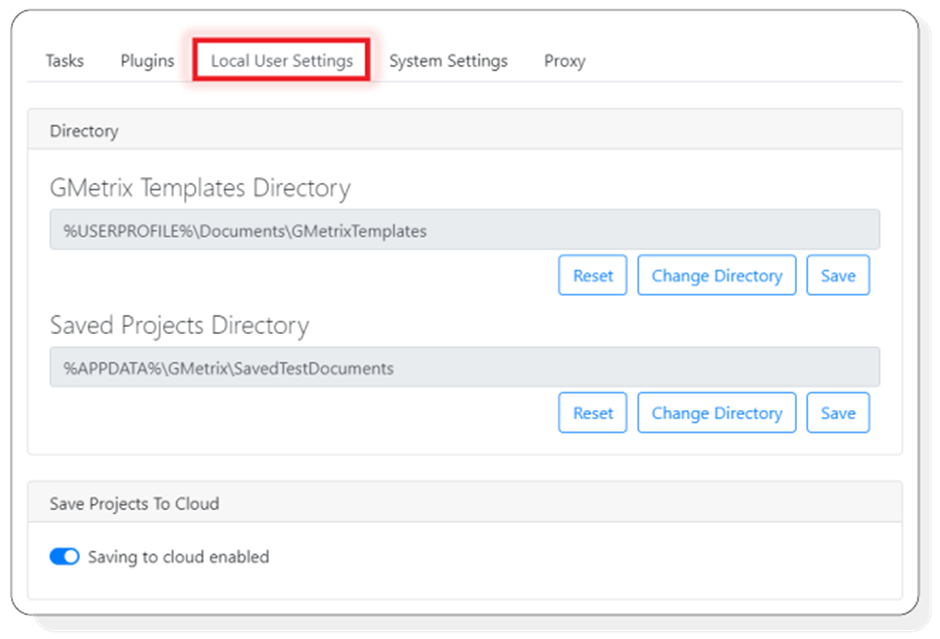
- Navigate to the Local User Settings tab
- Click Change Directory and select a location on the system where you have write access (for example, your student folder, a shared drive, or your desktop)
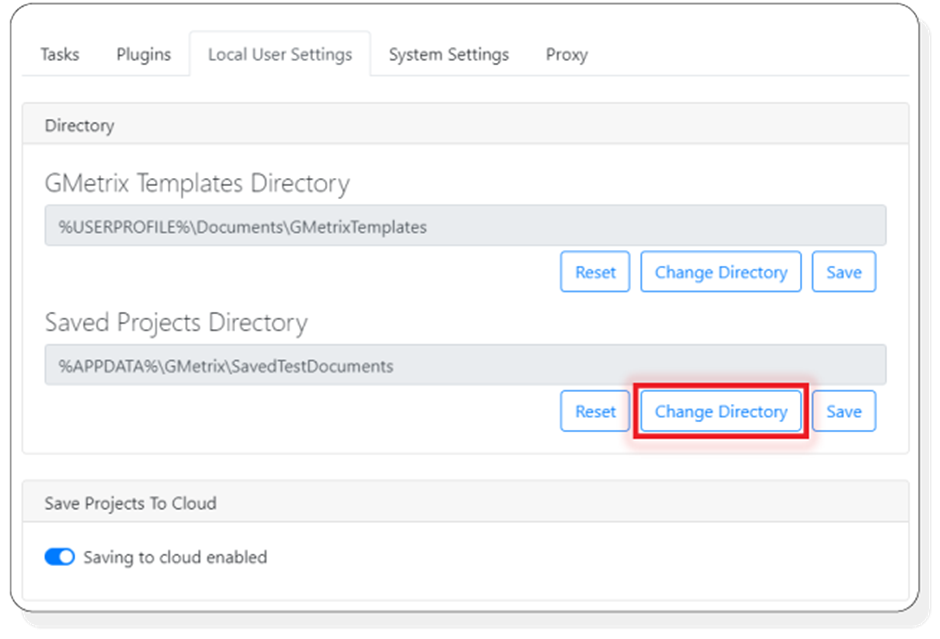
- Click Save to confirm your changes
Note: Enabling Saving to the Cloud first saves the project to the local machine and then uploads it to the GMetrix server. This allows you to move between computers and resume your Practice Tests.
When saving to the cloud is enabled, the local Saved Projects folder still requires write access on your machine.
GMetrixTemplate folder - Reset or change the folder location
If you cannot find the GMetrixTemplates folder or it appears to be corrupted, try the steps below:
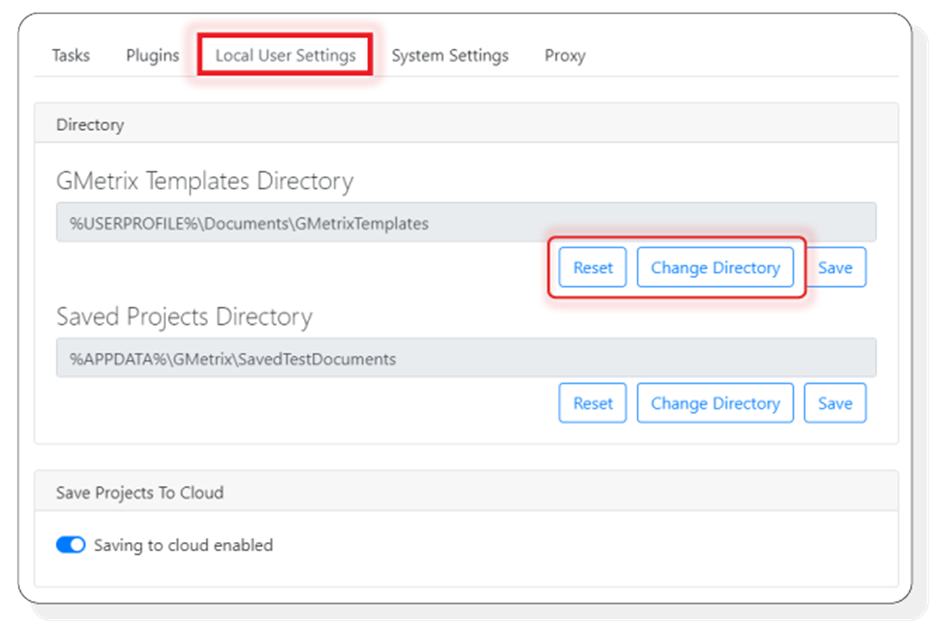
- Open the GMetrixSMS application and click the Settings icon in the top-left corner
- Navigate to the Local User Settings tab
- Reset or Change Directory for the GMetrixTemplates folder
Issue: Questions are not loading or are taking a Long Time to load
Sometimes, questions may take a little while to load. If the question content does not appear after a few seconds
- Try resetting the question. This issue may be related to your broadband speed or the device you are using.
If the questions do not load at all, try the following steps:
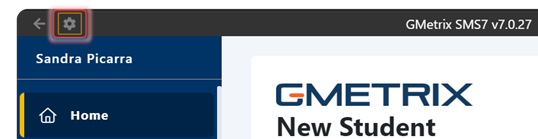
- Open the GMetrixSMS app and click the Settings icon in the top-left corner.
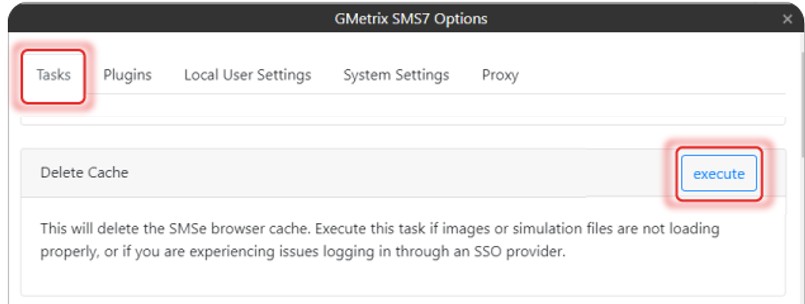
- Go to the Tasks tab and click Execute under Delete Cache options
- Restart and begin a new test
If the issue persists with Adobe Applications, try the following:
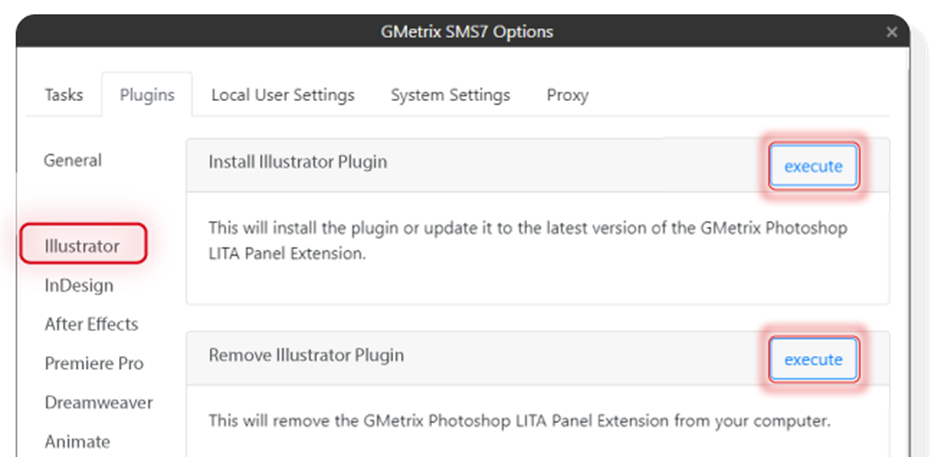
- Go to the Plugins and select the application.
- Click execute under Remove application Plugin.
- Click execute under Install application Plugin.
- Restart and begin a new test.
Issue: The templates folder Cache affects test performance.
If this happens:
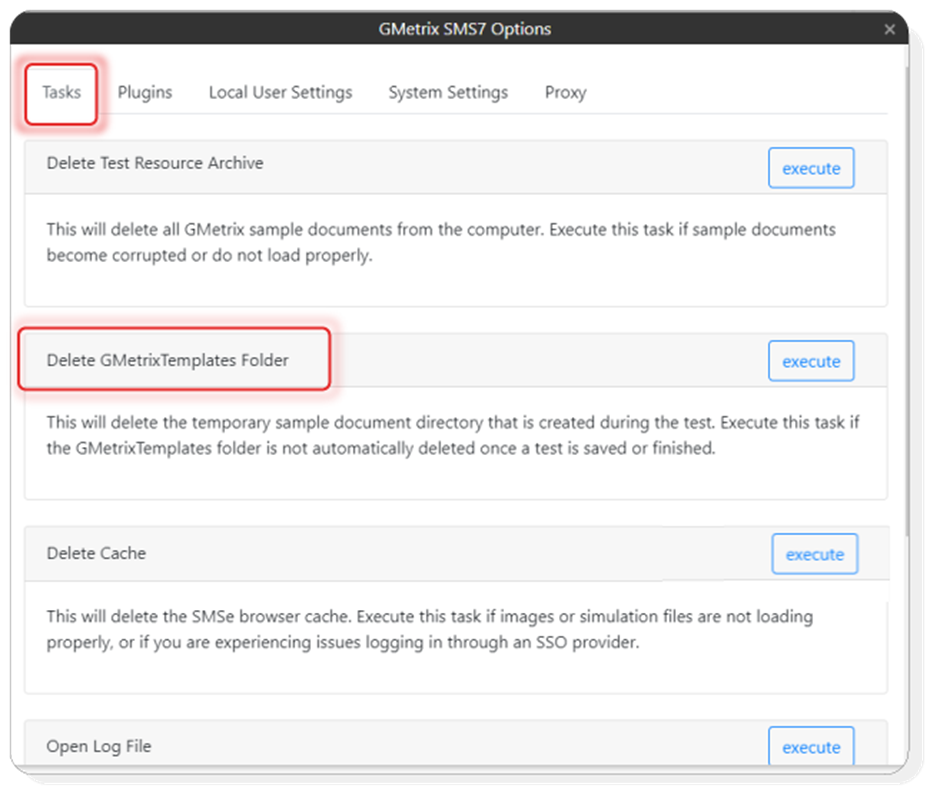
- Go to the Tasks tab
- Select Delete GMetrixTemplates Folder
- Restart GMetrix and start a new test.
Error: Unable to access sample document directory (macOS )
Sometimes, when using a macOS machine, you may encounter the error: "Unable to access sample document directory (…). Please ensure you have the proper permissions enabled and try again."
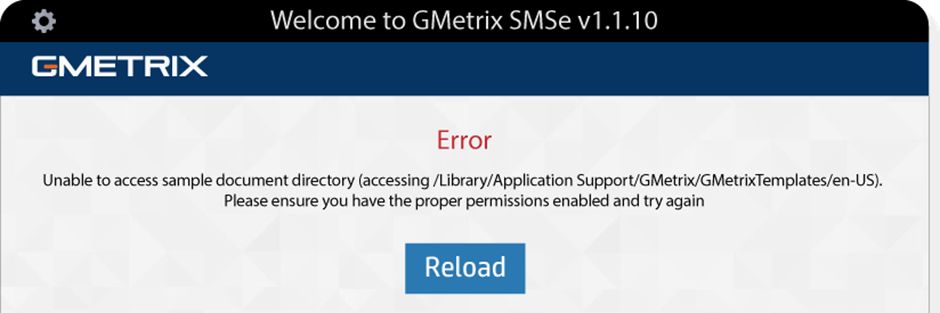
If this happens, please try the troubleshooting steps outlined below:
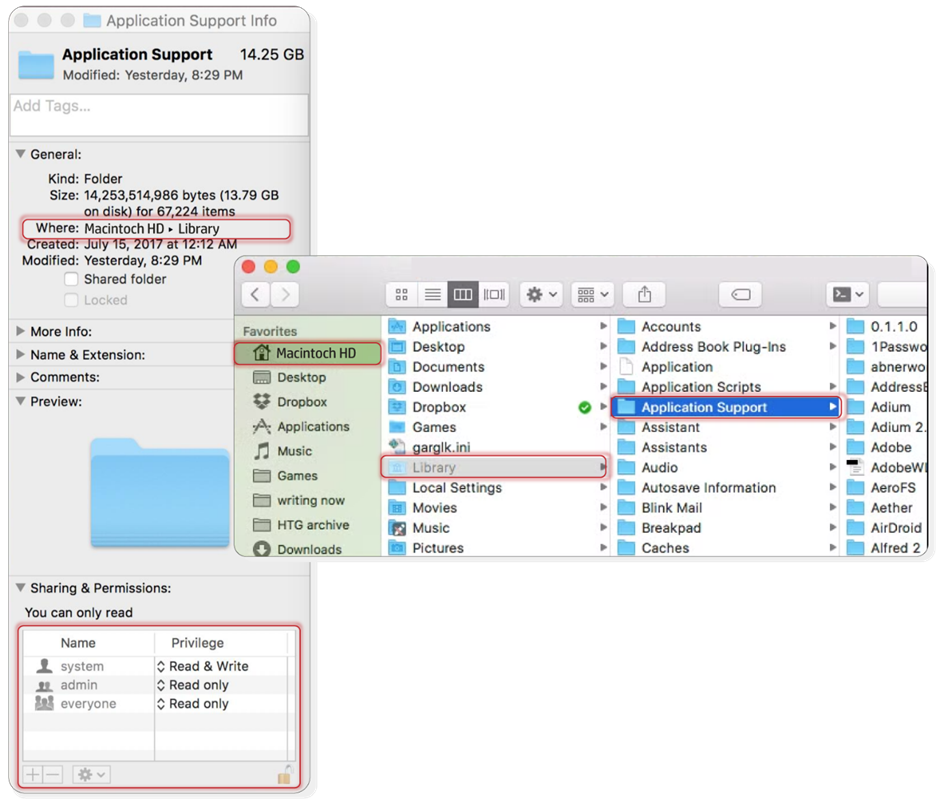
- Open the Finder and go to Macintosh HD (your drive's name may be different) > Library > Application Support.
- Right-click (or Control-click) the Application Support folder and select Get Info.
- In the Sharing & Permissions section, make sure that both System and your user account are set to Read & Write.
- Close the window to save the changes.
Issue: Adobe Loading Issue (MacOS)
In some situations, macOS is restricting the read and write access that GMetrix needs to download the content whenever a new question loads on the test. If this is happening, you can resolve it through the following steps:
- Open the Finder and navigate to the Extension Folder
- This can be done by following the file path Macintosh HD > Library > Application Support > Adobe > CEP
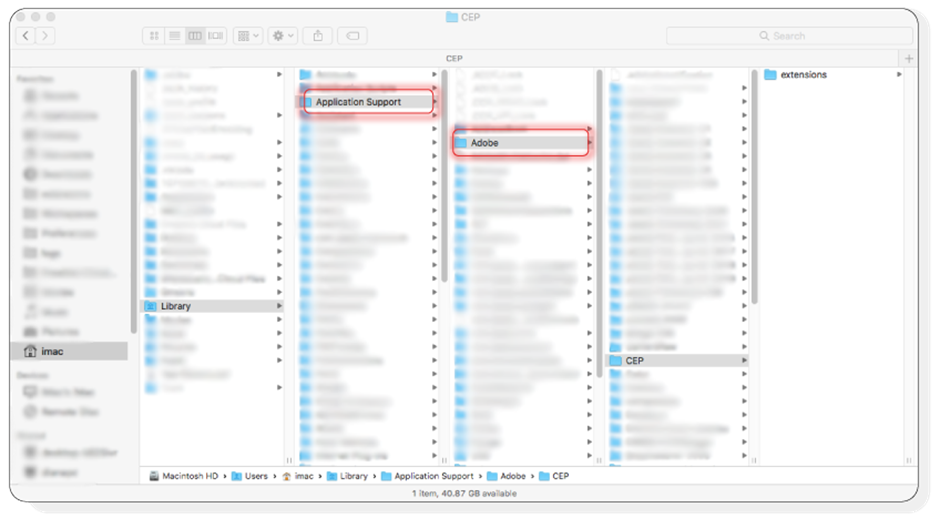 Right-Click the Extension folder and select "GetInfo"
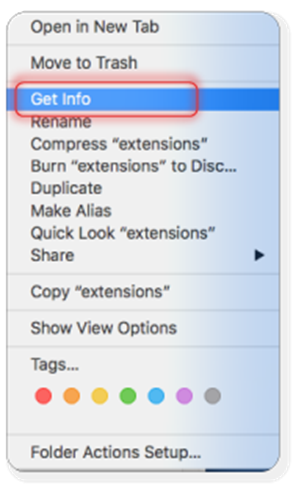
- In the pop-up window, go to the Sharing & Permissions group.
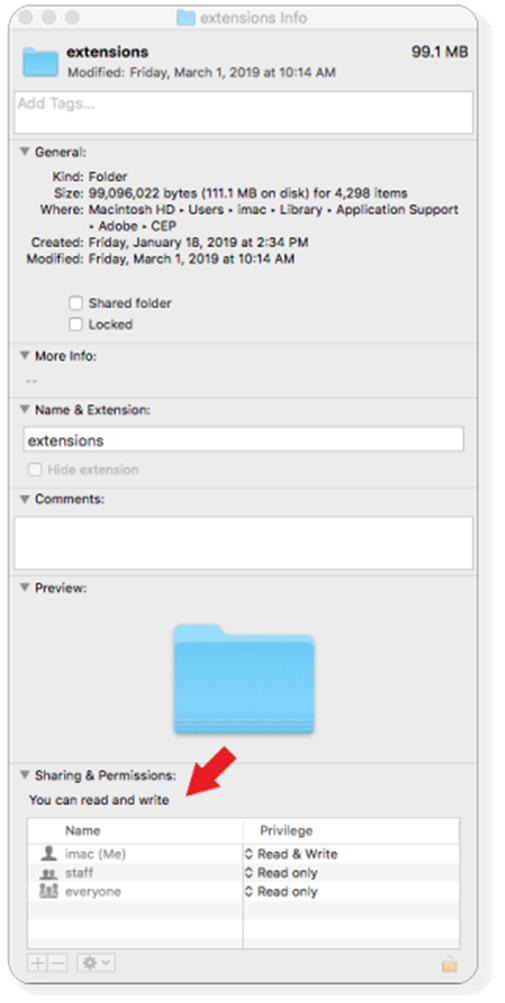
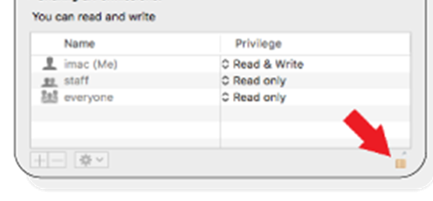
- Click on the lock in the bottom right and enter your computer's password
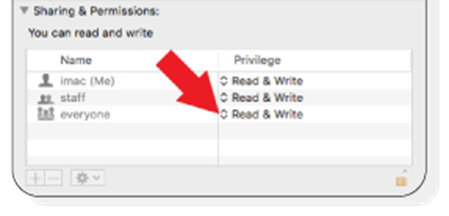
- Set the privileges to "Read & Write" instead of "Read Only," and ensure that the read and write permissions apply to "Everyone."
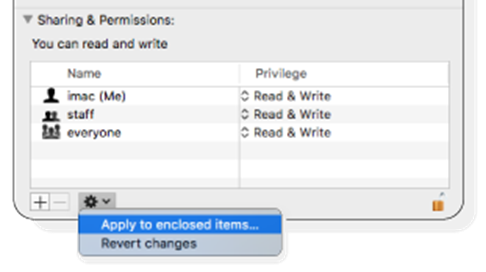
- Once you have made the changes, click the gear icon at the bottom of the window and select "Apply to enclosed item."
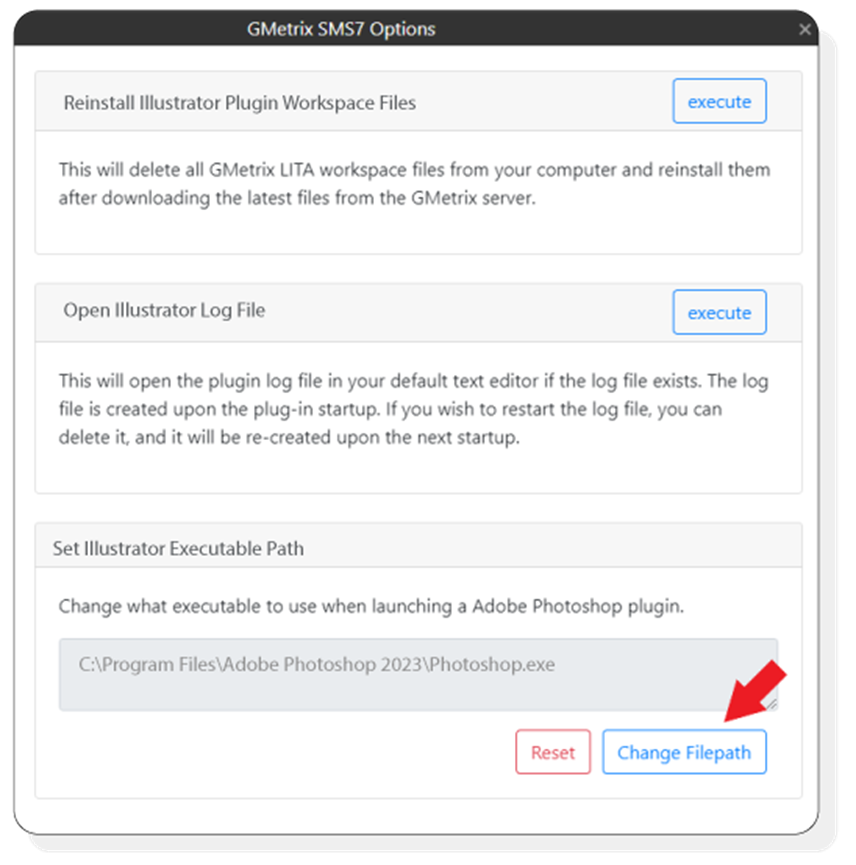
Issue: GMetrixSMS cannot locate the Adobe Application
Follow these steps if your GMetrixSMS App cannot locate the Adobe application:
- Open the GMetrixSMS application and click the Settings icon in the top-left corner
- Navigate to the Plugins tab
- Select your application
- Scroll down, select Change Filepath, and set it to the filepath where your application is installed.
Issue: Missing the option to start the exam
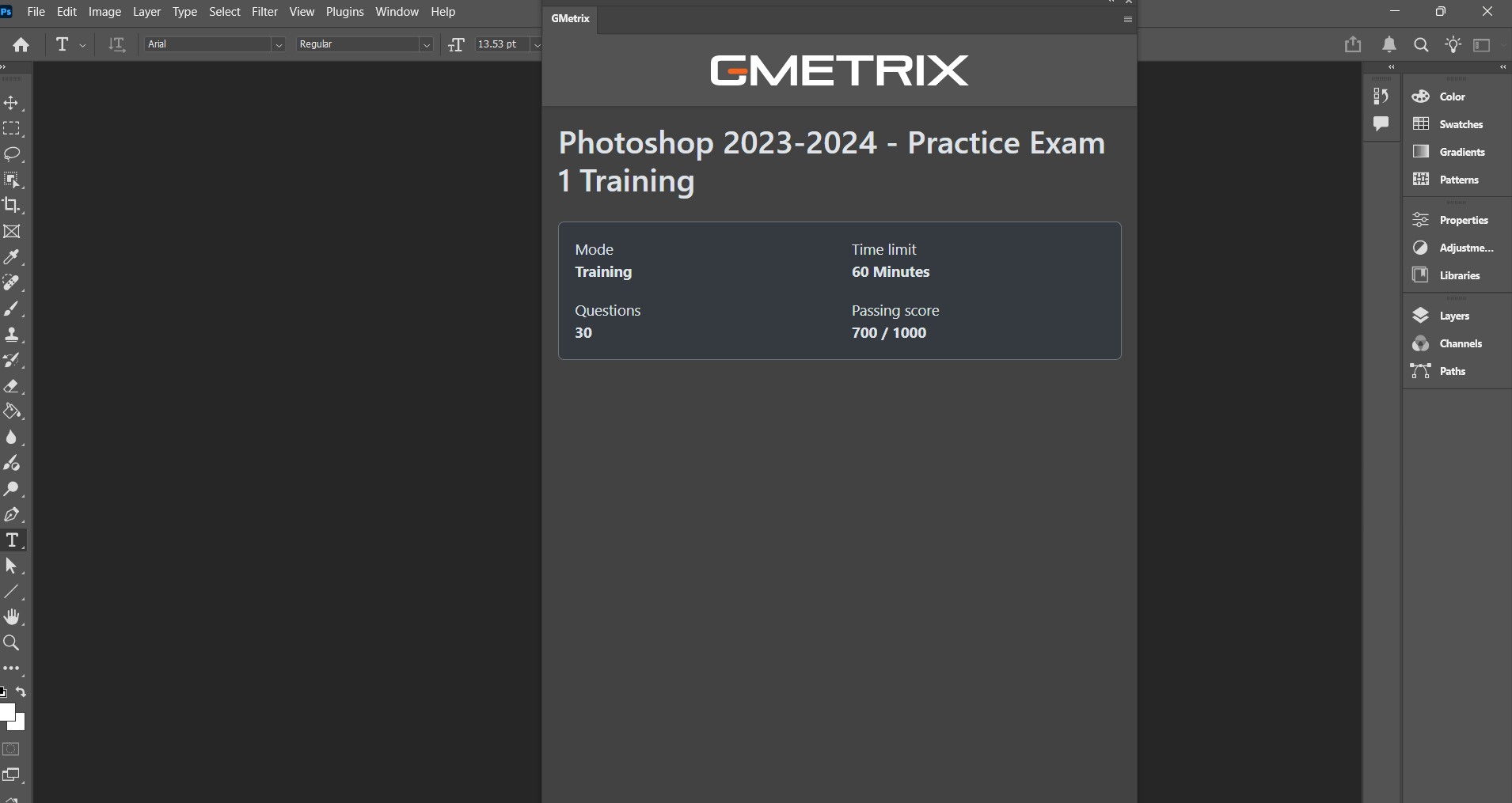
A common issue is that the Start Button is missing when starting a practice test. The panel can be adjusted horizontally but not vertically, and the panel cannot be slid high enough for the start button to be visible.
- The workspace is snapping to the tile and is extending below the screen. We would recommend placing your cursor at the top of the workspace, clicking and holding, then dragging the workspace to the side of the program. You should see it try to attach to the inside of the program.
- To resolve this issue, following the steps in this help article to reset the extensions and workspace has helped me to rescale the panel to the appropriate size: Gmetrix Panels Not Showing in Adobe: GMetrix Support (freshdesk.com)
Specific Application Issues (by Course)
MOS Word
SmartArt text overlaps shapes
- This is a known GMetrix simulation limitation
- Continue completing the task using the correct steps
- This behaviour does not occur in the live certification exam
Formatting looks incorrect
- Some formatting changes may not visually update immediately
- The system checks actions rather than visual layout
MOS Word Expert
Advanced formatting issues
- Complex formatting may display differently in simulations.
- Complete the task steps as instructed
Headers and sections behave unexpectedly
- Section breaks and headers may not appear as expected.
- Scoring is based on the actions completed
MOS Excel
Formulas do not update immediately
- Some calculations may take a moment to refresh
- Wait briefly before continuing
Charts appear different
- Chart visuals may differ from live Excel
- Ensure the correct chart type is applied
MOS Excel Expert
Advanced formulas show unexpected results
- Intermediate values may not display clearly
- This does not affect scoring
Data tools behave differently
- Some advanced tools are simplified
- Follow the task instructions carefully
MOS PowerPoint
Transitions or animations do not preview
- This is expected behaviour in simulations
- Apply the required transition and continue
Slide layouts appear misaligned
- Layout previews may differ slightly
- The applied layout action is assessed
MOS Access
Relationships appear simplified
- Some visual indicators may be missing
- This is expected in simulations
Forms or reports look different
- Formatting may vary from live Access
- This does not affect exam readiness
Adobe Photoshop
Tools appear disabled
- This may occur briefly while the simulation loads
- Wait a few seconds before continuing
Panels are missing or moved
- Panel layouts may reset
- Open required panels manually
Adobe InDesign
Panels reset or move
- This is expected behaviour in simulations
- Open required panels and continue
Text alignment looks incorrect
- Visual differences may occur
- Complete the instructed task steps
Adobe Premiere Pro
Timeline playback is slow
- This is related to simulation and device performance
- Playback quality does not affect scoring
Panels or tools are not visible
- Workspaces may load differently
- Reset or open required panels manually
Need Help?
If the issue persists after troubleshooting, please contact support@gmetrix.com and copy cenitsupport@cenitcollege.ie.
It is important to copy us on the email so we can follow up with GMetrix if you do not receive a quick response.
You can also visit the GMetrix Official Support Page.
Version Control
Current version: v1.2
Last updated: 21 April 2026
Owner: Cenit College
This article reflects current processes. In line with Cenit College policy, processes may be amended where required to meet operational, regulatory, or awarding body requirements.
Was this article helpful?
That’s Great!
Thank you for your feedback
Sorry! We couldn't be helpful
Thank you for your feedback
Feedback sent
We appreciate your effort and will try to fix the article