What this page is for
This article explains what GMetrix practice tests are and how learners use them in eCollege courses.
It covers registration, access codes, required tests, and how to submit results correctly.
If you are experiencing technical problems, please refer to the GMetrix Troubleshooting article.
On this page
About GMetrix practice tests
- GMetrix is a practice-test platform used to prepare learners for Adobe and Microsoft Certification exams.
- You will have access to practice exams, each offering Training Mode and Testing Mode. These modes help you practice and build confidence before taking the actual exam.
- The practice exams cover all question types you may encounter in the certification exam, including multiple-choice, drag-and-drop (map the answer), fill-in-the-blank, and simulation-based questions.
- The tests simulate the format and structure of the real certification exam.
- Practice exams are completed inside the application, such as Adobe Photoshop or Microsoft Word.
- GMetrix is widely used as a study guide and exam preparation tool.
Important
Some visual behaviour may differ from the live exam. Following the correct steps still prepares you correctly.
Please note that while the questions are similar in format to those on the official exam, they are not identical. Since GMetrix is provided by an external provider, eCollege can only offer general guidance and basic troubleshooting support if issues arise.
System requirements and preparation
- Operating system: Windows 10 or Windows 11
- Memory: Minimum 4 GB RAM
- Internet connection: Stable connection
- Browser: Chrome or Edge for the web version
- .NET Framework: Version 4.7.2 or higher
macOS support is limited and usually web-based only.
Registering for GMetrix
- You must create a GMetrix account before you can access practice tests.
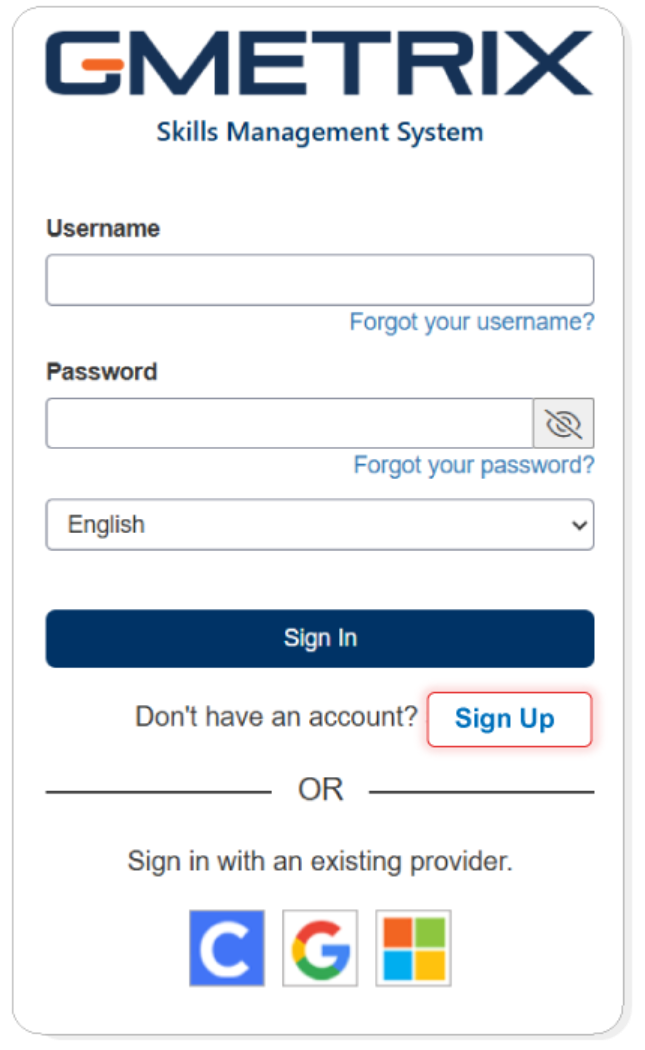
- Go to gmetrix.net and select Sign Up.
- Use your email address as your username.
- You can ignore the Student Number field.
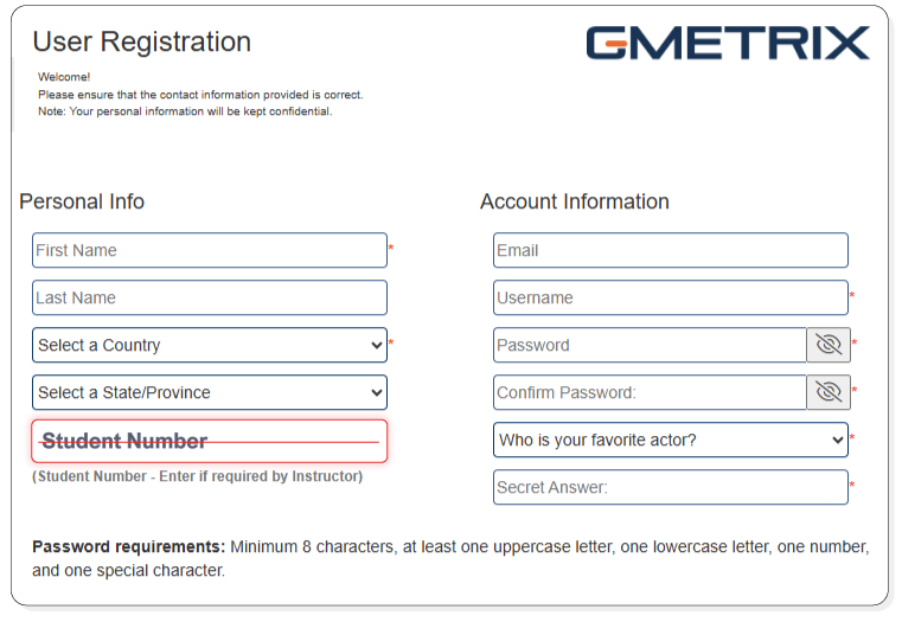
- Check the box to accept the terms and conditions, then click Confirm.
Installing the GMetrix application
Before you start
- GMetrix practice exams run inside Adobe applications such as Adobe Illustrator or Microsoft Word.
- To access the exams, you must install the GMetrix application that matches your device.
- Windows users must install GMetrixSMS.
- macOS users must install GMetrixSMSe.
- If you open a practice exam without GMetrix installed, you will be prompted to download it.
- We would recommend that you install GMetrix before starting any tests.
Download GMetrix
- Go to the official GMetrix download page.
- This page includes installers for both Windows and macOS.
- The installer file will usually download to your Downloads folder.
Important
Only download GMetrix from the official GMetrix website.
Install GMetrixSMS on Windows
- Open your Downloads folder.
- Double click the GMetrixSMS installer file.
- Review the licence terms and select I Agree to continue.
- Choose the installation folder. We recommend leaving the default location.
- Some practice tasks require access to the installation folder.
- Wait while the installation completes.
- Do not close the installer or select Cancel.
- Select Finish to complete the setup.
- GMetrixSMS is now installed on your device.
Install GMetrixSMSe on macOS
- Open your Downloads folder.
- Double click the GMetrixSMSe installer file.
- Follow the on screen instructions.
- You may be asked to allow permissions during installation.
- Complete the installation using the default settings.
- Once finished, GMetrixSMSe will be ready to use.
Video Guide
You can also watch a step-by-step video guides:
Windows
How to Install GMetrixSMS for Windows.
Watch the Windows installation video
macOS
How to Install GMetrixSMSe for macOS.
Requesting and redeeming your GMetrix code
- Log in to Moodle, navigate to your course, and then to the GMetrix mock exam area. This is in or near the test preparation topic and may only be available if you have completed the rest of the course.
- Submit the GMetrix Mock Request form.
- Once approved, you will receive an email containing your GMetrix access code.
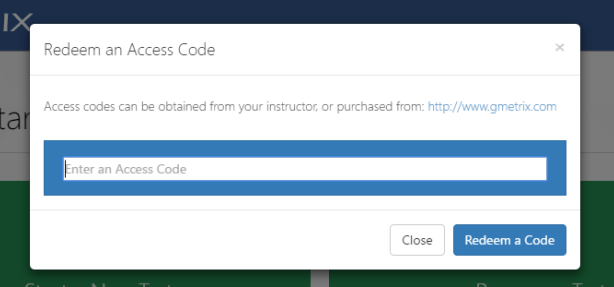
- Log in to GMetrix and redeem the code to activate your exams.
Video Guide
You can also watch a step-by-step video guide:
Which tests must be completed
Adobe Courses
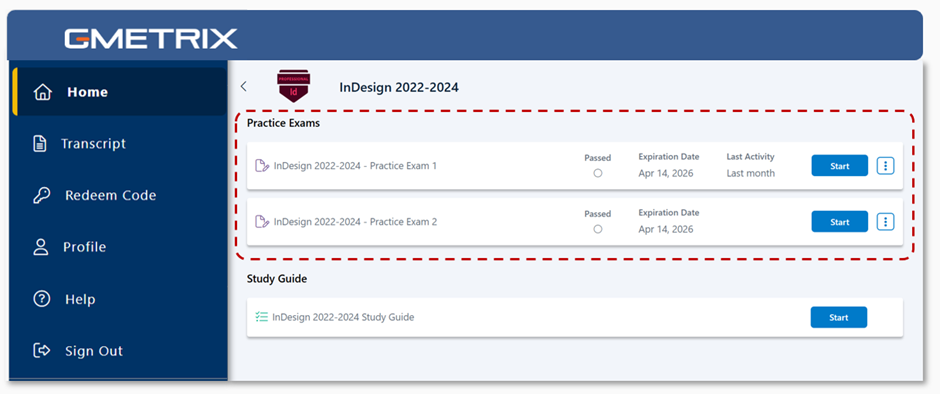
- Once you redeem your GMetrix Code, you will gain access to the 2023-2024 exam group.

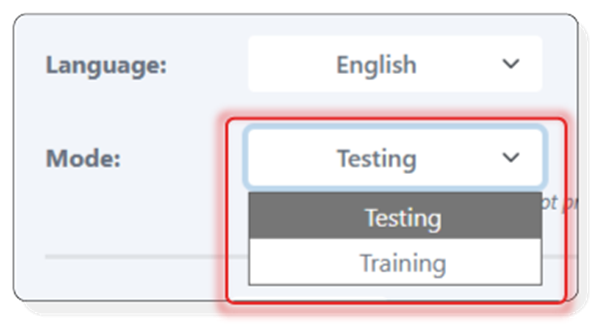
- You are required to complete Practice Exam 1 and Practice Exam 2 in both Training Mode and Testing Mode
- You must achieve a score of 90% or higher in Testing Mode.
- Training Mode provides feedback and guidance.
- Testing Mode records your final score.
Recommendation
- Start by completing Practice Exams 1 and 2 in Training Mode to familiarise yourself with the environment, question types, and answers
- Once you feel confident, retake the exams in Testing Mode to achieve the required score
Microsoft Courses - WIP
WIP
Launching a GMetrix test
- Before you launch a test, please make sure the Adobe or Microsoft applications are fully closed. Close Photoshop, Microsoft Word, Excel, etc
- Log in to GMetrix and select the application icon
- Select a test and choose Training Mode or Testing Mode
- This will launch the Application with the GMetrix workspace
- Click Start Test to begin
Attempts Allowed
For each assigned code, you are allowed a total of 50 attempts per test.
Recommendations:
- Start in Training Mode
- You will be informed whether your answers are correct
- Guidance will be provided if assistance is required
- If a question is answered incorrectly, review it and attempt it again
- The Help button is only available in Training Mode and is located at the bottom left of each question.
Note: Do not submit the tests in Training Mode. Instead, save your progress so you can return later to retry questions without using up your attempts.
Submitting GMetrix results
GMetrix Reports Required
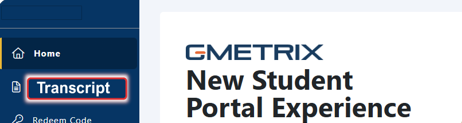
- Open the Transcripts section in GMetrix
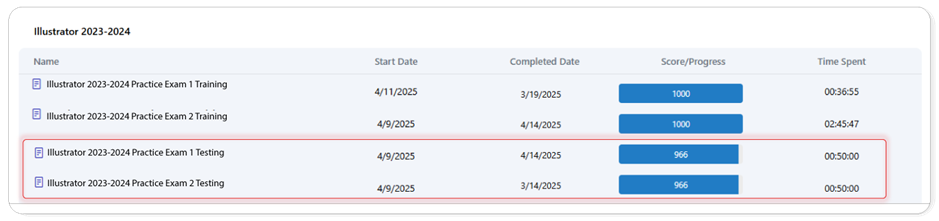
- Take a screenshot showing Practice Exam 1 and Practice Exam 2 completed in Testing Mode
- Highlight only the Practice Exams completed in Testing Mode with a score of 90% or higher
- You can upload multiple screenshots if needed
Moodle Actions Required
- Upload the screenshots to the GMetrix Mock Exam Upload area in Moodle. Log in to Moodle.
- Navigate to the GMetrix Mock Exam Upload area on the course.
- Upload your screenshots by clicking the GMetrix Mock Exam Upload area
- Click Add submission
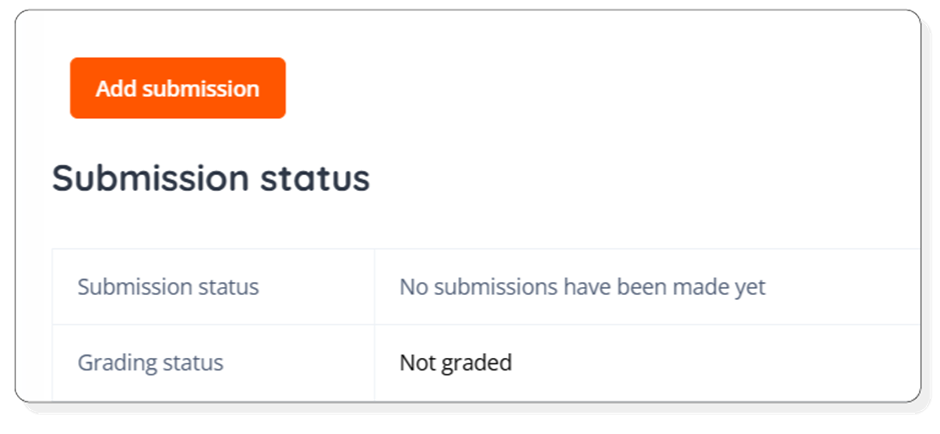
- Attach or drag-and-drop your screenshots in the designated area
- Add any comments or notes if required
- Click Upload this file
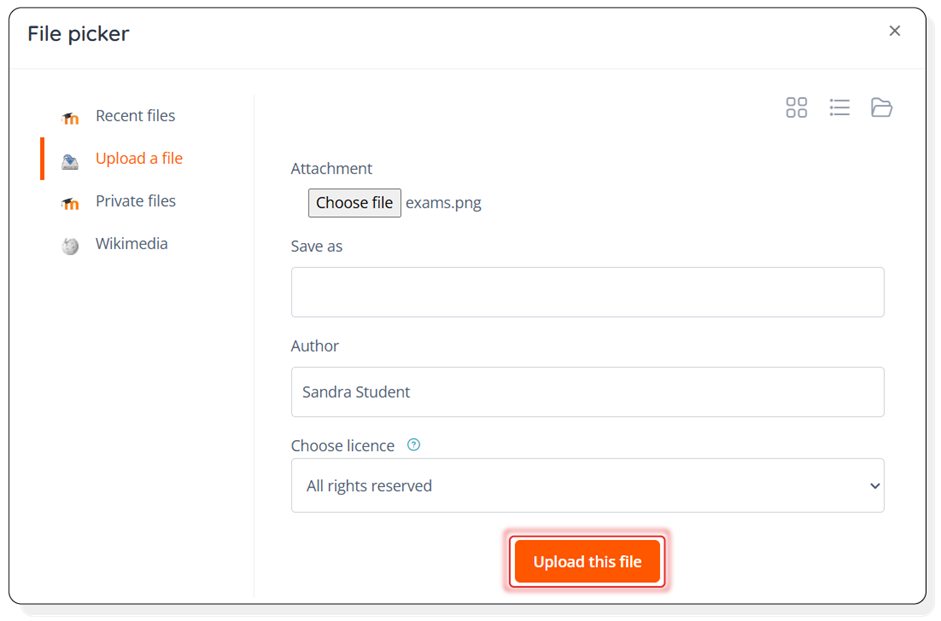
- Click Save changes
- Your submission will be sent for grading
- You will receive a confirmation email once your submission is successful
Note: You will gain access to Exam Booking once your GMetrix submission has been graded by your tutor.
Need Help?
If you have technical issues or have questions, you can contact Support through the support portal.
Version Control
Current version: v1.0
Last updated: 21 April 2026
Owner: Cenit College
This article reflects current processes. In line with Cenit College policy, processes may be amended where required to meet operational, regulatory, or awarding body requirements.
Was this article helpful?
That’s Great!
Thank you for your feedback
Sorry! We couldn't be helpful
Thank you for your feedback
Feedback sent
We appreciate your effort and will try to fix the article