This article outlines common ICDL and Skillsbox issues experienced by learners, including undefined diagnostic results, serious exam errors, access issues, and password resets.
TABLE OF CONTENTS
- Why does my ICDL diagnostic result show “Undefined”?
- A “Serious Error Occurred” in diagnostic exams
- Trouble accessing Skillsbox?
- Open Z: Drive (Files for use in Diagnostic)
- How do I reset my Skillsbox (ICDL System) password?
Why does my ICDL diagnostic result show “Undefined”?
When a diagnostic result shows “Undefined”, it means the system could not determine whether the answer was correct or incorrect.
This usually occurs in questions where you must place a marker (circle) on the screen. If the marker is not placed precisely in the correct location, the system cannot assess the answer.
To avoid this, ensure the marker is placed exactly on the required area and not between two locations.
A “Serious Error Occurred” in diagnostic exams
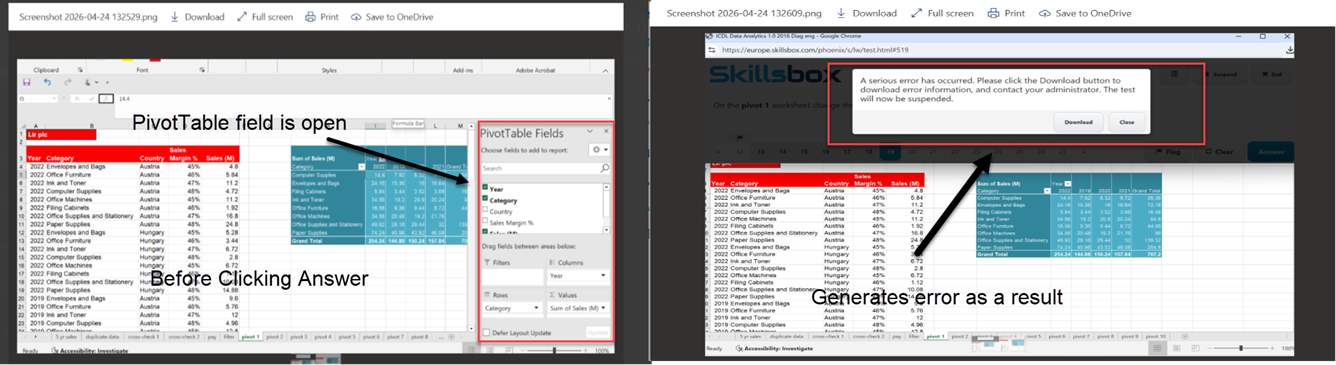
This error occurs when a dialog box, panel, or field is left open before the learner clicks the Answer button.
In this situation, the system cannot submit the answer correctly and displays a serious error message.
Common cause
This is often caused by panels such as the PivotTable Fields pane being left open.
How to resolve
- Completely close the diagnostic or certification exam
- Restart the exam
- Ensure all dialog boxes, panels, and fields are closed before submitting an answer
This issue can appear in different parts but is usually caused by the same behaviour.
Trouble accessing Skillsbox?
If Skillsbox is not loading correctly or you are seeing repeated errors, clearing your browser cache usually resolves the issue.
When should I try this?
- Skillsbox does not load properly
- Pages appear blank or incomplete
- You see repeated error messages
These issues are commonly caused by stored browser data.
Clear your browser cache (Google Chrome)
- Open Google Chrome
- Select More (three dots in the top-right corner)
- Select Delete browsing data
- Set Time range to All time
- Select Cached images and files
- Select Delete data
Note: Deleting cookies will not sign you out of your Google account.
Re-open Skillsbox
- Open your web browser
- Type www.skillsbox.com directly into the address bar (do not copy and paste)
- Select the first link shown
Open Z: Drive (Files for use in Diagnostic)
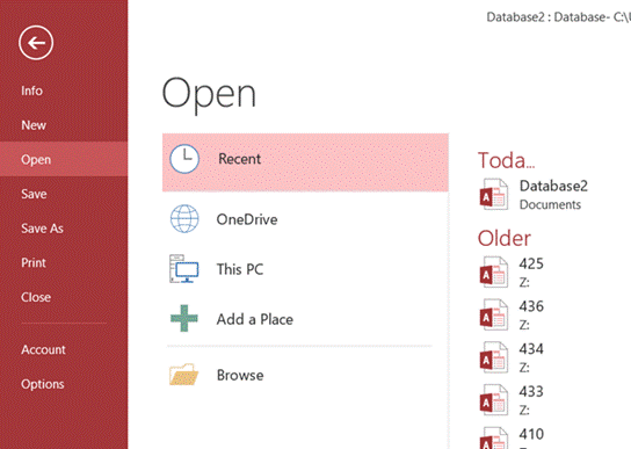
All files required will be placed in the Z: Drive (this is created automatically when you are in the diagnostic)
If you go to File & click on Open, you will see the full directory. You need to click Browse. The Z drive should be in here.
How do I reset my Skillsbox (ICDL System) password?
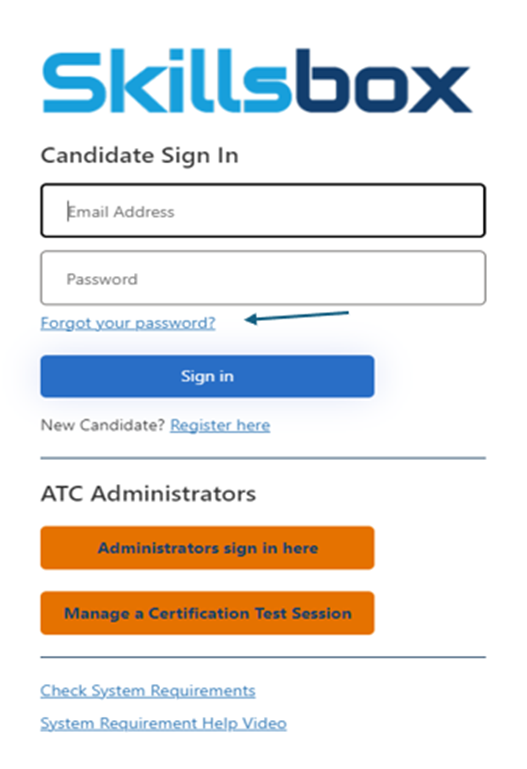
- To reset your Skillsbox password, use this link and follow the on-screen instructions.
- Please check your spam or junk folder for the reset email.
- Contact support if you continue to experience issues.
Version: 1.0
Last updated: 29 April 2026
Was this article helpful?
That’s Great!
Thank you for your feedback
Sorry! We couldn't be helpful
Thank you for your feedback
Feedback sent
We appreciate your effort and will try to fix the article