How to Run an ICDL Diagnostic Test (Skillsbox)
This article explains how to access and complete an ICDL diagnostic (mock exam) using the Skillsbox platform. It also covers system checks, common issues, and important guidance before starting the real exam.
Table of Contents
- What web browser to use
- What website to access
- How to access the diagnostic screen
- How to access the diagnostic test
- How to run the diagnostic test
- System check
- System check errors
- System check stuck on “In Progress”
- Other troubleshooting options
- Navigating the diagnostic test
- Important notes
- Version control
What web browser to use
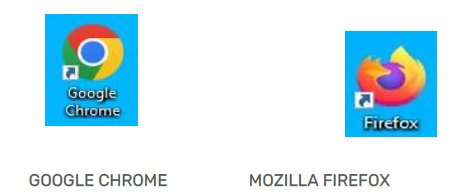
To complete the ICDL diagnostic at home, you must use one of the following web browsers:
- Google Chrome
- Mozilla Firefox
Recommended: Google Chrome for best compatibility.
What website to access
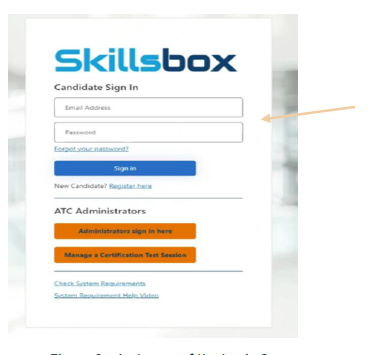
- Go to https://core.skillsbox.com
- Log in using the username and password you created when registering on Skillsbox
How to access the diagnostic screen
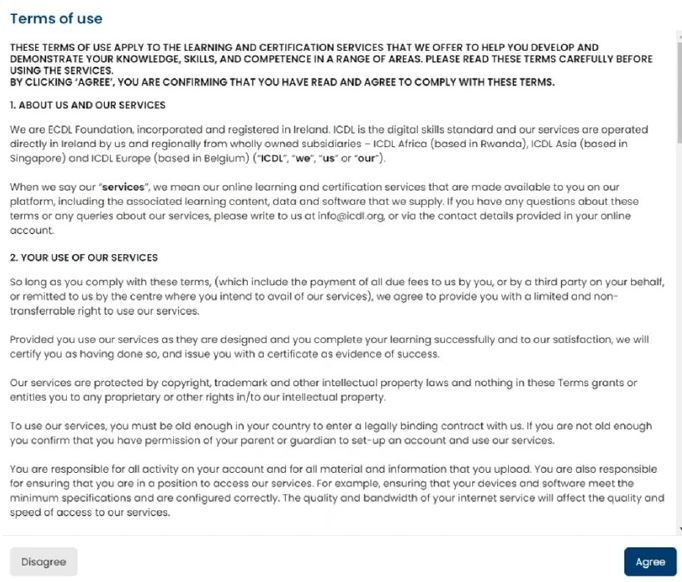
- After logging in, the Terms of Use screen will display
- Read the terms carefully
- Select Accept to continue
Please accept the terms of use before proceeding.
How to access the diagnostic test
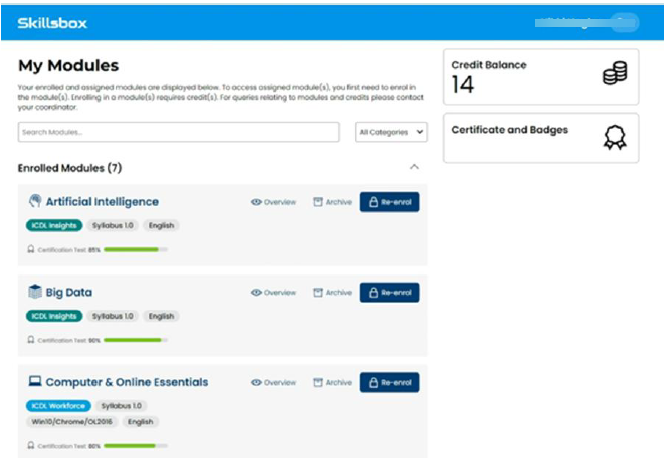
Once logged in, you will see the My Modules screen showing all the modules you are enrolled in.
Identify the module you wish to complete the diagnostic for.
How to run the diagnostic test
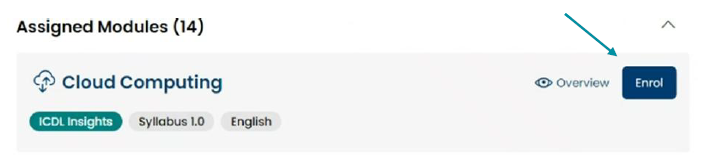
Enrolling on the module
- Select the relevant module
- Click Enrol
- Confirm the message by clicking Enrol (1 Credit)
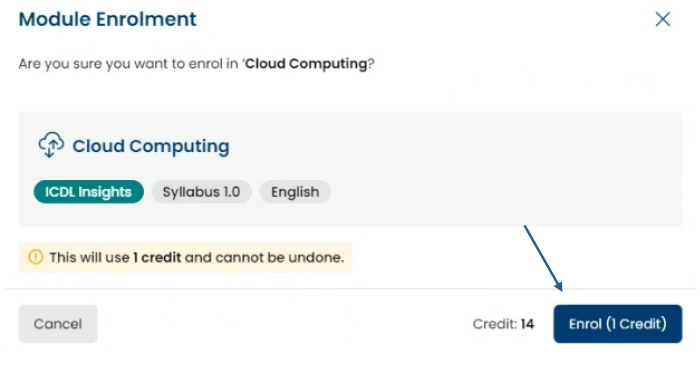
Important: Enrolling uses one credit and cannot be reversed.
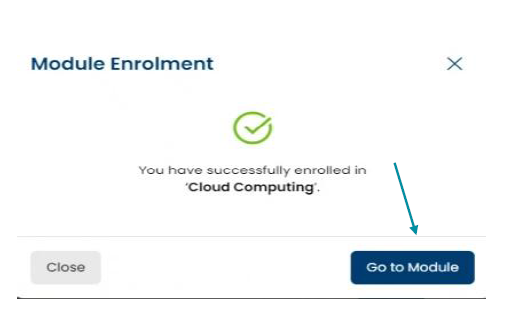
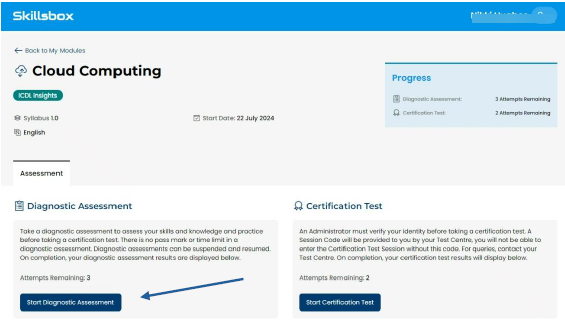
Starting the diagnostic
- Click Go to Module
- Select Start Diagnostic Assessment
System check
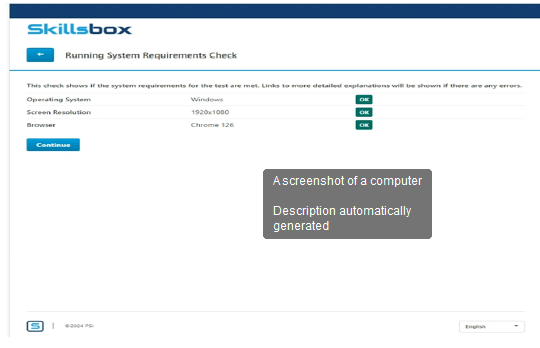
Before the diagnostic starts, a system check will run to ensure your device is ready.
- Review all system check results
- If no errors appear, click Continue
System check errors
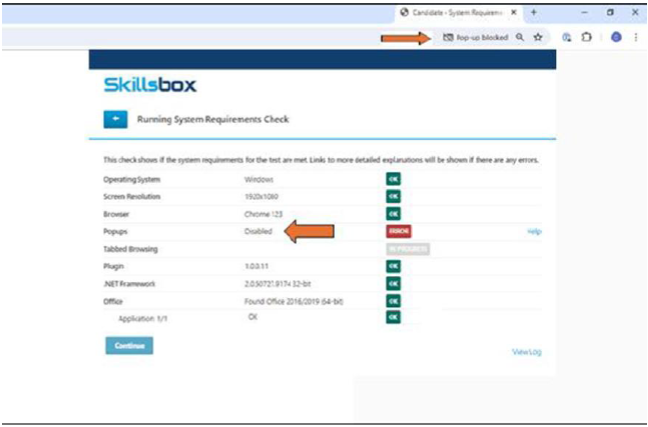
If a red error appears beside any item, you will need to resolve it before you continue.
A troubleshooting video is available on eCollege (linked in this text). Please log in to eCollege to see it.
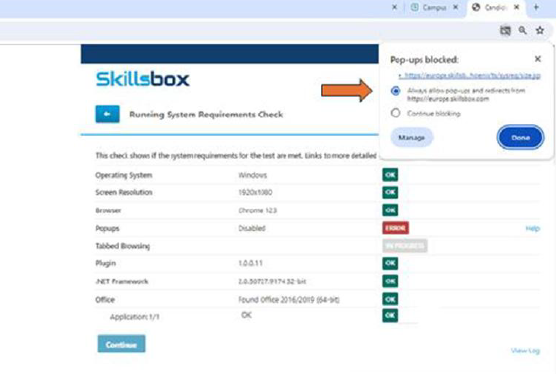
Pop-ups blocked
- Select the pop-up icon in the browser address bar
- Choose Always allow pop-ups and redirects from europe.skillsbox.com
- Click Done
- The Pop-up window displays 2 options. (Continue blocking is ticked by default.) Select Always
System check stuck on “In Progress”
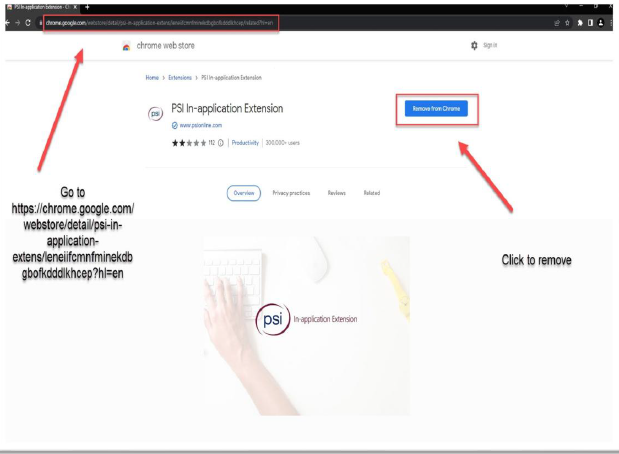
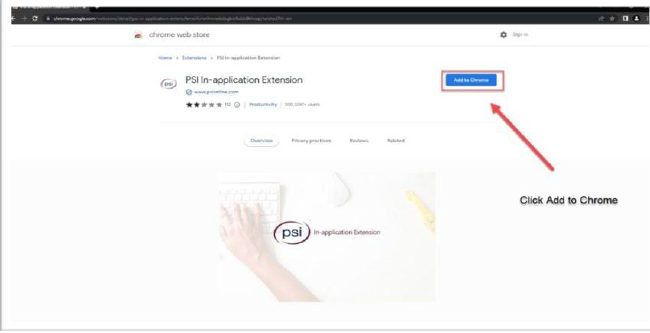
This issue is usually caused by the PSI In‑Application Extension after a Chrome update.
- Open the Chrome Web Store page for the PSI In‑Application Extension
- Select Remove from Chrome
- Confirm the removal
- Select Add to Chrome to reinstall
Other troubleshooting options
Blank screen
If the diagnostic screen is blank, try using a different browser such as Chrome, Firefox, or Edge.
Login error
If you see the message “Sorry, your credentials weren’t recognised”:
- Re‑enter your username and password carefully
- Check that Caps Lock is not enabled
- Only your eTutor can reset your password
Navigating the diagnostic test
| Option | What it does |
|---|---|
| Flag | Marks a question to return to later |
| Next | Moves to the next question |
| Clear | Clears your current answer |
| Suspend Test | Pauses the diagnostic to continue later |
| End Test | Ends the diagnostic and displays results |
| Nav | Allows navigation between questions |
Screenshot placeholder: Diagnostic navigation bar
Important notes
- Once you click End Test, you cannot access the diagnostic again
- Avoid keyboard shortcuts and right‑clicking. Use the ribbon instead
- Only end the test when you are fully satisfied with your answers
- Practice each diagnostic question at least twice
- Review incorrect answers carefully
- You must achieve at least 85% to progress to the real exam
- After completion, submit the Exam Request Form on the eCollege site
Version Control
Current version: v1.0
Last updated: 19 April 2026
Owner: Cenit College
Was this article helpful?
That’s Great!
Thank you for your feedback
Sorry! We couldn't be helpful
Thank you for your feedback
Feedback sent
We appreciate your effort and will try to fix the article