How to Install Microsoft 365 on Your Device (Desktop Version)
This video, below, explains how to install the desktop (offline) version of Microsoft 365 on your computer, rather than using the web-based version in a browser.
Key points covered in the video:
- To use Microsoft applications like Word, Excel, PowerPoint, and Outlook without relying on a web browser, you need to download and install them directly on your device.
- You must sign in with your Microsoft 365 account to access the installer.
- Once signed in, you can download Microsoft 365 and follow the on-screen steps to install it on your hard drive.
- After installation, the applications will be available on your computer and can be used offline, with work syncing when you reconnect to the internet.
Why install the desktop version:
- Better performance and more features than the web version
- Ability to work offline
- Files can be saved locally as well as to OneDrive
- You will need it for any application based courses and examinations.
Press Play to review the video.
Step-by-Step Installation
Sign in to Microsoft 365 using the username and password provided by Cenit College.
Important: Before signing in with your Office 365 eCollege account, make sure you are signed out of any other personal or work Microsoft accounts.
Go to https://login.microsoftonline.com and sign in using your College–issued Microsoft account (Office 365), for example: XXXXXX@ecollege.onmicrosoft.com, along with the provided temporary password.
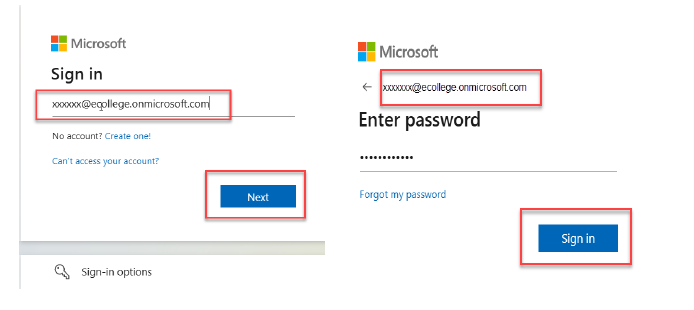 When prompted, enter the temporary password, then create and confirm a new password.
Download the Office Applications
- Once signed in, click Install apps from the homepage.
- Select Microsoft 365 apps 64-bit to begin downloading the installer.
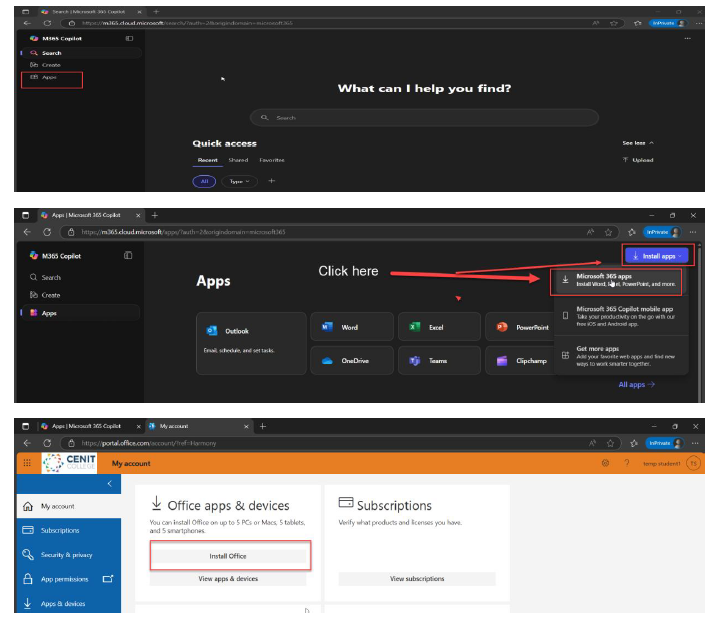
Run the Installer
- Open the downloaded file (usually named OfficeSetup.exe) from your default download location or download folder.
- Follow the on-screen instructions to install the apps on your device.
- If prompted by User Account Control, click Yes to allow changes.
- You will be prompted to set organisational rule > click “No, Install app only”
Activate with Microsoft Credentials
- After installation, open any Office app (e.g., Word or Excel).
- Sign in with your eCollege Microsoft Office 365 account, then enter your new password when prompted.
- Accept the license agreement to complete activation.
Verify Activation
- Once signed in, the app should activate automatically.
- You can confirm activation by going to File > Account in any Office app.
Was this article helpful?
That’s Great!
Thank you for your feedback
Sorry! We couldn't be helpful
Thank you for your feedback
Feedback sent
We appreciate your effort and will try to fix the article