This knowledge base article explains how learners can view upcoming live classes, access live class recordings, and understand which course types include recorded sessions.
TABLE OF CONTENTS
How do I know if it is a fixed or Continuous Course?
How to identify your course type
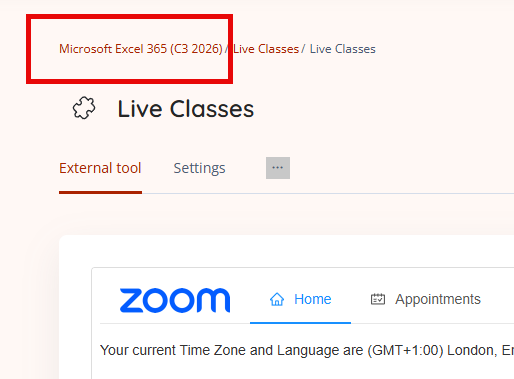
- If the course name ends with C1, C2, C3, or another number, it is a Fixed Course.
- If there is no number at the end of the course name, you are enrolled on a Continuous Course.
You can see the course name at the top of the course page.
This is important because recording availability depends on the course type.
For continuous courses, live classes are not recorded for data protection reason
For Fixed courses, live class recordings are avaialble after the live session has ended.
Viewing upcoming live classes
Upcoming Events
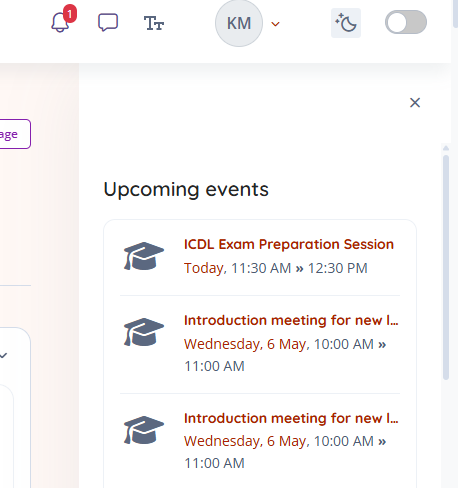
You can view a schedule of upcoming live classes directly within your course.
Live sessions are listed in the Upcoming Events section of the course page. This section displays scheduled classes and helps you track upcoming events. This is avilable on the right hand pop out panel on your course homepage.
Using the Moodle calendar
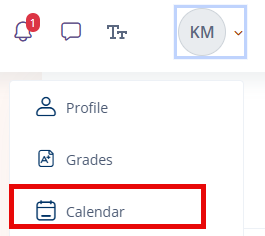
You can also view live class dates in the Calendar within your Moodle profile.
The calendar is available from the drop‑down menu next to your profile icon and shows upcoming live classes alongside other course‑related events.
Class updates and forum posts
Please keep an eye on forum posts emails from teaching and support staff. Please ensure you always check your Spam/Junk folder regularly.
Forum posts are used to share important updates, including:
- Changes to live class schedules
- Rescheduled classes
- Notifications if a class cannot go ahead as planned
Checking the forum regularly will help ensure you do not miss important information.
Live class schedules for fixed courses
If your course is a fixed course, a copy of the live class schedule is also included in your welcome email sent when you are first enrolled.
If you cannot find this email, please check your junk or spam folder.
Accessing live class recordings
For fixed courses, live class recordings are available after the live session has ended.
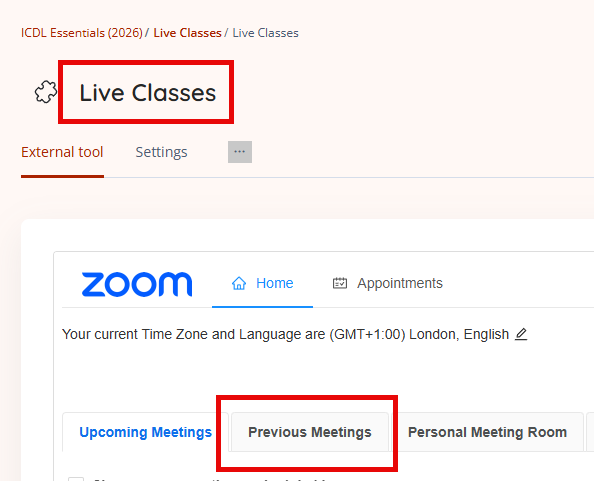
To access a recording:
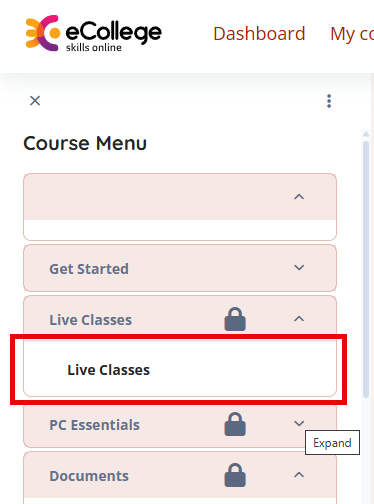
- Open your course
- Navigate to the Live Classes activity
- Select the Previous Meetings section
When you open a recording, the password is automatically copied to your clipboard.
Which live classes are recorded
To comply with data protection requirements:
- Live classes on continuous courses are not recorded
- Recordings are therefore not available for continuous courses
For fixed courses, live class recordings are made available after the session ends. These recordings allow learners to review content if they were unable to attend the live class.
Download Work Files for Live Classes
Any work files used during the session are also provided in:
Course Resources → Downloads
If a recording asks for a password
When you access a recording through:
Live Classes → Cloud Recordings
The password is automatically copied to your clipboard.
When prompted:
- Right‑click and select Paste, or
- Press Ctrl + V to paste the password into the box
Version: 1.0
Last updated: 29 April 2026
Was this article helpful?
That’s Great!
Thank you for your feedback
Sorry! We couldn't be helpful
Thank you for your feedback
Feedback sent
We appreciate your effort and will try to fix the article